Practical Guide to DOT Language (Graphviz) for Developers and Analysts
For developers, analysts and software architects who want to produce professional diagrams that are clear and beautiful to look at
What is DOT language? What is Graphviz?
DOT is a text-based graph description language. It allows you to describe nodes, edges, and visual attributes using a simple and readable syntax. It’s the standard format used by Graphviz.
Graphviz (Graph Visualization Software) is an open source suite of tools for graph visualization. Originally developed by AT&T Labs, Graphviz reads DOT files and generates images in various formats (SVG, PNG, PDF). It’s the most widely used tool in the world for generating diagrams from code.
Why use DOT and Graphviz instead of graphical tools?
- Versionable: DOT files are plain text, perfect for Git
- Reproducible: The same file always generates the same diagram
- Automatable: Generate diagrams in your CI/CD pipeline
- Fast: Write code, don’t drag boxes with your mouse
- Professional: High-quality output for technical documentation
Preface
Why did I write this manual? Because DOT and Graphviz guides exist, but they cover everything: biology, chemistry, social networks, family trees. Every time I had to search for what really matters to software developers. So I decided to write this guide, putting together everything I've used over the years and had to look up again and again. It took some work, but I hope it's worth it. Now I'm sharing it.
The advantage of generating diagrams from code? The DOT file lives in the repo, alongside the source. When you change the architecture, you update the diagram in the same commit, it goes through the same code review, follows the same workflow. It's not a PowerPoint forgotten on some drive that no one will ever open again. It's part of the project.
But there's more. DOT files are text, so you can generate them programmatically. Your software can produce diagrams showing the current system state, the phases of a process, the flow of a request through microservices, dependencies between modules loaded at runtime. I've seen teams automatically generate database migration maps, active feature flag graphs, even real-time message queue diagrams. The possibilities are endless.
If you're also tired of screenshots that become outdated the day after you take them, here you'll find everything you need to get started. And once you master DOT, you'll discover that diagrams are no longer static documentation: they become a living part of your system.
Daniele Teti
November 2025
Introduction
In the daily work of software developers — whether you’re an analyst, backend developer, frontend developer, database expert or architect — there always comes a time when a diagram becomes essential.
You need it when you have to:
- explain a complex flow,
- draw the CI/CD pipeline,
- describe the architecture to a new colleague,
- analyze dependencies between modules,
- document a database,
- prepare a technical presentation,
- reason about a refactoring,
- identify bottlenecks.
Graphviz and its DOT language are ideal tools: textual (versionable), fast to write, beautiful to render, flexible.
Installing Graphviz
Before starting, make sure you have Graphviz installed:
- Windows: Download the installer from graphviz.org/download or use
winget install graphviz - macOS:
brew install graphviz - Linux:
sudo apt install graphviz(Debian/Ubuntu) orsudo dnf install graphviz(Fedora/RHEL)
Verify the installation with dot -V — you should see the installed version.
This manual aims to be the definitive guide for those in software who want to use the DOT language to its fullest. You’ll find:
- in-depth explanation of attributes with all relevant options,
- complete, reusable and commented examples,
- best practices for professional graphics,
- suggestions on using layout engines,
- concrete scenarios from the development world (design, refactoring, analysis, architecture).
The DOT language: solid foundations
DOT describes graphs with a very simple syntax:
digraph Name {
    nodeA -> nodeB;
}
Or undirected:
graph Name {
    nodeA -- nodeB;
}
Key concepts:
- nodes: entities (functions, objects, microservices, DB tables)
- edges: relationships, calls, flows
- attributes: visual appearance or metadata
Quick Start: your first diagram in 30 seconds
Test immediately online (without installing anything)
All examples in this article can be tested directly online using Edotor.net:
-
Go to edotor.net
-
Copy the DOT code from any example in this article
-
Paste it in the left area (replacing the existing code)
-
See the immediate rendering in the right area
It’s the fastest way to experiment without installing Graphviz. When you’re ready for production, install Graphviz locally.
First example to try
Copy this code and test it on edotor.net:
digraph MyFirstGraph {
    node [shape=box, style=rounded, fillcolor=lightblue, style="rounded,filled"];
    edge [color=blue];

    Start -> Process -> End;
    Process -> Error [style=dashed, label="on failure"];
    Error -> Process [label="retry"];
}
Or use the local command line
Create a hello.dot file with the code above and generate the SVG image:
dot -Tsvg hello.dot -o hello.svg
Open hello.svg in your browser and you’ll see your first flowchart! From here on, everything is based on variations and combinations of these concepts.
Fundamental attributes (with complete options)
Attributes can be applied globally to:
graphnodeedge- individual elements
Example:
digraph demo {
    graph [rankdir=LR];
    node [shape=box];
    edge [color=grey];

    A -> B;
}
Below is a list of the most important attributes with their most useful options in software development.
Node attributes (node)
shape — node shape
Useful options:
boxellipsecirclediamond(decisions in flows)record(class diagrams, data structures)plaintext(fully customized content with HTML-label)notefolder(available in some builds)
Example:
node [shape=box];
Typical uses:
- box → software modules
- ellipse → states
- diamond → decisions
style — graphic style
Common options:
filleddasheddottedboldrounded- combinations:
"filled,rounded"
Example:
node [style="filled,rounded"];
fillcolor — fill color
Formats:
- names (e.g.
"lightgrey") - HEX (e.g.
"#AABBCC") - RGB (
"#rrggbb") - HSL (in some builds)
fontname, fontcolor, fontsize
E.g.:
node [fontname="Segoe UI", fontsize=12, fontcolor="#333333"];
margin
Internal margin of the node.
node [margin="0.2,0.1"];
width and height — node dimensions
Control the size of nodes. By default, Graphviz automatically sizes nodes to fit their content.
node [width=1.5, height=0.8];
fixedsize — Force exact dimensions:
fixedsize=false(default): Node grows to fit content, treating width/height as minimum valuesfixedsize=true: Node has exact dimensions specified by width/height, regardless of contentfixedsize=shape: Applies only to the shape, not the label
Practical use cases:
- Uniform appearance: Use
fixedsize=truewithwidthto make all nodes the same size (essential for state diagrams, flowcharts) - Responsive sizing: Use default
fixedsize=falseto let nodes adapt to content length - Fixed width only: Combine with
heightto control aspect ratio
// All states same size (professional FSM)
node [shape=circle, fixedsize=true, width=0.9];

// Minimum size but can grow
node [shape=box, width=1.0, fixedsize=false];
label and xlabel — node labels
label — Standard label displayed inside or near the node:
A [label="State A"];
Multi-line labels — Use \n for line breaks:
A [label="Main Title\nSubtitle or description"];
xlabel — External label positioned outside the node boundary. Graphviz automatically finds the best position to avoid overlaps with edges and other nodes. Very useful for state diagrams where you want to keep states clean:
A [xlabel="State A"];
Practical example comparing label vs xlabel:
digraph LabelComparison {
    graph [rankdir=LR, fontname="Segoe UI"];
    node [shape=circle, fontsize=11, fontname="Segoe UI"];
    edge [fontname="Segoe UI"];

    subgraph cluster_standard {
        label="Using label (internal)";
        style=filled;
        fillcolor="#F5F5F5";

        S1 [label="Idle"];
        S2 [label="Running"];
        S3 [label="Done"];

        S1 -> S2 [label="start"];
        S2 -> S3 [label="finish"];
        S3 -> S1 [label="reset"];
    }

    subgraph cluster_external {
        label="Using xlabel (external)";
        style=filled;
        fillcolor="#F5F5F5";

        X1 [xlabel="Idle"];
        X2 [xlabel="Running"];
        X3 [xlabel="Done"];

        X1 -> X2 [label="start"];
        X2 -> X3 [label="finish"];
        X3 -> X1 [label="reset"];
    }
}
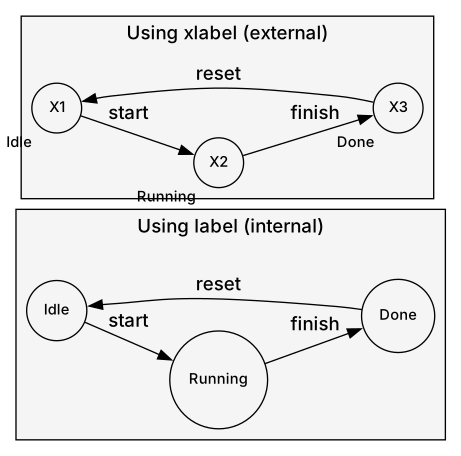
When to use xlabel:
- State diagrams: Keep state circles visually clean
- Complex graphs: Reduce visual clutter inside nodes
- Automatic positioning: Let Graphviz find optimal label placement
- Small nodes: When internal labels would make nodes too large
Adding notes and annotations to nodes
There are several techniques to add explanatory notes, descriptions, or annotations to nodes in your diagrams, especially useful for mind maps, documentation, and complex architectures.
Technique 1: Multi-line labels with \n
The simplest approach: add line breaks inside the label.
Concept [label="Main Concept\n(This is a note explaining the concept)"];
Technique 2: Tooltip with tooltip attribute
Add a tooltip that appears on hover (works in SVG when viewed in browsers):
Node [label="Cloud Storage", tooltip="Amazon S3, Azure Blob, Google Cloud Storage"];
Technique 3: Separate note node connected with dashed edge
Create a dedicated note node visually distinct from main nodes:
MainNode [label="User Service"];
Note1 [shape=note, label="Handles authentication\nand user profiles", fillcolor="#FFFACD"];
MainNode -> Note1 [style=dashed, arrowhead=none, color="#CCCCCC"];
Technique 4: HTML-like labels with record shape
Use structured records to separate title from description:
node [shape=record];
Concept [label="{Concept Name|Description or note\labout this concept}"];
Complete example: Mind map with notes
graph MindMapWithNotes {
    graph [layout=fdp, K=0.6, fontname="Segoe UI"];
    node [shape=box, style="rounded,filled", fillcolor="#E3F2FD", fontsize=11, fontname="Segoe UI"];
    edge [color="#888888", fontname="Segoe UI"];

    // Main concept (central)
    Central [label="Project\nArchitecture", fillcolor="#BBDEFB", fontsize=14, width=2.0, height=1.0, pin=true, pos="0,0!"];

    // Sub-concepts (around center)
    Frontend [label="Frontend\nReact + TypeScript", width=1.8];
    Backend [label="Backend\nNode.js + Express", width=1.8];
    Database [label="Database\nPostgreSQL", width=1.5];
    DevOps [label="DevOps\nDocker + CI/CD", width=1.5];

    // Note nodes (attached to concepts)
    FrontendNote [shape=note, label="Uses Redux\nfor state mgmt", fillcolor="#FFFACD", fontsize=10];
    BackendNote [shape=note, label="RESTful API\n+ WebSocket", fillcolor="#FFFACD", fontsize=10];
    DatabaseNote [shape=note, label="PostgreSQL\n+ migrations", fillcolor="#FFFACD", fontsize=10];
    DevOpsNote [shape=note, label="Automated\ndeployments", fillcolor="#FFFACD", fontsize=10];

    // Main connections (mind map branches)
    Central -- Frontend;
    Central -- Backend;
    Central -- Database;
    Central -- DevOps;

    // Notes attached with dashed lines (no arrows)
    Frontend -- FrontendNote [style=dashed, color="#CCCCCC"];
    Backend -- BackendNote [style=dashed, color="#CCCCCC"];
    Database -- DatabaseNote [style=dashed, color="#CCCCCC"];
    DevOps -- DevOpsNote [style=dashed, color="#CCCCCC"];
}
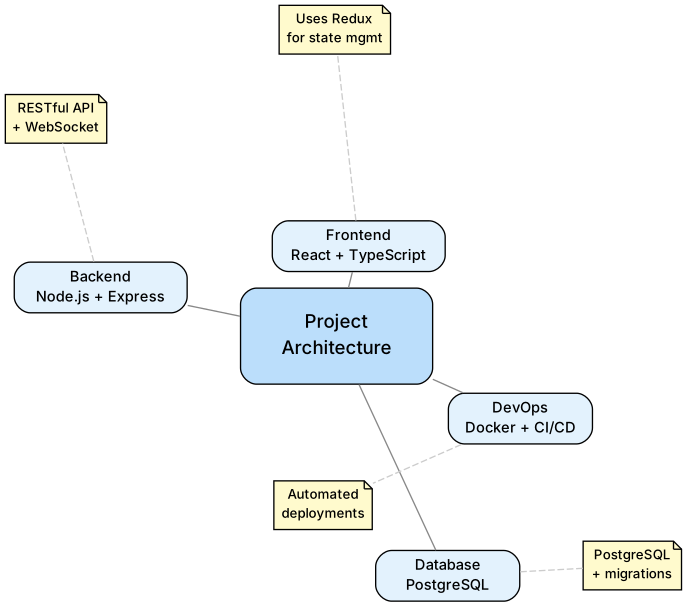
When to use each technique:
| Technique | Best for | Pros | Cons |
|---|---|---|---|
Multi-line \n |
Short notes (1-2 lines) | Simple, always visible | Can make nodes too large |
tooltip |
Long explanations | Doesn’t clutter diagram | Only works in interactive SVG |
| Separate note node | Important annotations | Very visible, styleable | Adds visual complexity |
| HTML record | Structured data | Clean separation | More complex syntax |
Edge attributes (edge)
arrowsize
Arrow scale. Default ~1.0
edge [arrowsize=0.8];
arrowhead / arrowtail
Useful options:
normalempty(hollow triangle, very readable)diamondonormalcrow(ER diagrams)teenone
style and color
edge [style=dashed, color="#888888"];
label
Edge label.
A -> B [label="calls"];
Graph attributes (graph)
rankdir
Layout direction (only dot):
TB(top → bottom)BT(bottom → top)LR(left → right)RL(right → left)
E.g.:
graph [rankdir=LR];
splines
Controls the shape of edges:
true(default)false(straight lines)polylineortho(orthogonal, great for “architect” diagrams)
ranksep, nodesep
Horizontal/vertical spacing.
graph [ranksep=0.8, nodesep=0.6];
How to define styles for groups of nodes in DOT?
One of the most common questions when using Graphviz is: how can I apply the same style to a group of nodes without repeating it for each one?
The answer is simple: list the nodes on the same line followed by the attribute definition. DOT will apply those attributes to all listed nodes.
Syntax for styling groups of nodes
Method 1: Redefine node defaults (recommended)
// Redefine node defaults before each group
node [shape=box, style=filled, fillcolor="#E8F4F8"];
A; B; C;

node [shape=ellipse, style=filled, fillcolor="#FFF4E6", fontname="Segoe UI"];
D; E; F;

node [shape=diamond, style=filled, fillcolor="#FFE8E8"];
G; H; I;
Method 2: List nodes with attributes
// Alternative: list nodes separated by semicolons, last one with attributes
A; B; C [shape=box, style=filled, fillcolor="#E8F4F8"];
D; E; F [shape=ellipse, style=filled, fillcolor="#FFF4E6"];
G; H; I [shape=diamond, style=filled, fillcolor="#FFE8E8"];
Note: Method 1 is more reliable across different Graphviz versions and makes it easier to add nodes to a category later.
This technique is essential when you have complex diagrams with dozens of nodes belonging to different categories.
Practical example: categorizing nodes by role
Imagine you need to draw an architecture with three types of components: services (blue boxes), databases (green cylinders), queues/messages (orange ellipses).
digraph Architecture {
    graph [rankdir=LR, nodesep=0.8, fontname="Segoe UI"];
    node [fontname="Segoe UI"];
    edge [fontname="Segoe UI"];

    // Services - blue boxes
    node [shape=box, style="filled,rounded", fillcolor="#E3F2FD"];
    AuthService; UserService; OrderService; NotificationService;

    // Databases - green cylinders
    node [shape=cylinder, style=filled, fillcolor="#E8F5E9"];
    UserDB; OrderDB; SessionCache;

    // Message queues - orange ellipses
    node [shape=ellipse, style=filled, fillcolor="#FFF3E0"];
    EmailQueue; SMSQueue; PushQueue;

    // Relationships
    AuthService -> SessionCache;
    UserService -> UserDB;
    OrderService -> OrderDB;
    OrderService -> EmailQueue;
    NotificationService -> EmailQueue;
    NotificationService -> SMSQueue;
    NotificationService -> PushQueue;
}
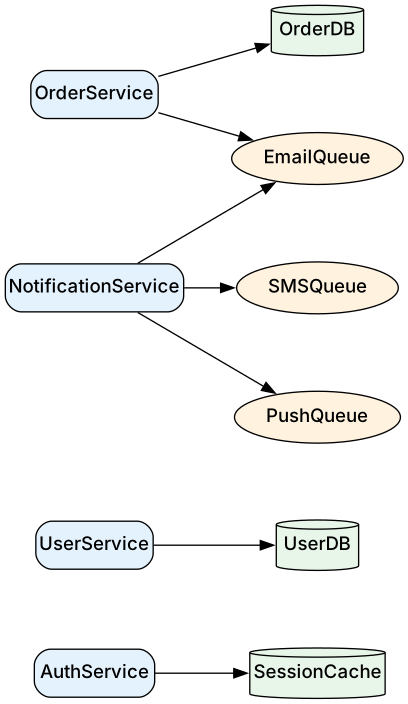
What this example does: Defines three categories of nodes with different styles in just three lines. Services are rounded blue boxes, databases are green cylinders, queues are orange ellipses. Each category is immediately visually recognizable.
Why use this technique?
- DRY code (Don’t Repeat Yourself): You don’t repeat
shape=box, style=filledfor each node - Maintainability: Changing the color of all services requires a single edit
- Readability: The DOT code becomes self-documenting (you immediately see which nodes are services, which are DBs)
- Scalability: Adding a new service is just a matter of adding the name to the list
Combining with default attributes
You can combine this technique with default attributes for maximum flexibility:
digraph Mixed {
    // Default for all nodes
    node [fontname="Segoe UI", fontsize=11];

    // Then specialize by group
    Input; Validation [shape=parallelogram, fillcolor="#B3E5FC", style=filled];
    Process; Transform [shape=box, fillcolor="#C8E6C9", style=filled];
    Output; Export [shape=parallelogram, fillcolor="#FFCCBC", style=filled];
    Error [shape=octagon, fillcolor="#FFCDD2", style=filled];

    Input -> Validation -> Process -> Transform -> Output -> Export;
    Validation -> Error;
    Process -> Error;
}
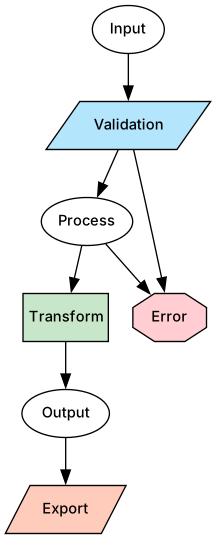
What this example does: Defines a common default (Arial 11pt font) and then three groups: input/output as parallelograms (flowchart convention), processes as boxes, errors as red octagons.
Layout Engines: choosing the right one
Graphviz doesn’t have just one rendering engine: it offers several, each optimized for specific types of graphs. Choosing the right engine means getting more readable and professional diagrams.
You specify the engine using the -K flag from CLI:
dot -Kdot -Tsvg file.dot -o output.svg
dot -Kneato -Tsvg file.dot -o output.svg
Or in the DOT file itself:
graph G {
    layout=neato;
    // ...
}
Below are the main engines and when to use them.
Available layout engines
dot — hierarchical layout (default)
What it does: Arranges nodes hierarchically, following the direction of edges. It’s the most used.
Perfect for:
- Flowcharts and flow diagrams
- CI/CD pipelines
- Call graphs (graph of calls between functions)
- Layered architectures (presentation → business → data)
- Sequential processes
- Dependency diagrams with clear direction
Example command:
dot -Tsvg flowchart.dot -o flowchart.svg
Visual example:
digraph DotExample {
    graph [rankdir=TB, fontname="Segoe UI"];
    node [shape=box, style="rounded,filled", fillcolor="#E3F2FD", fontname="Segoe UI"];

    A -> B -> C;
    A -> D -> C;
    B -> E;
    D -> E;
}
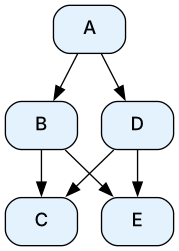
What you see: Nodes arranged in clear hierarchical layers from top to bottom. Perfect for showing flow and dependencies.
When to avoid it: If the graph doesn’t have a clear hierarchical structure or contains many cycles.
neato — force-directed layout
What it does: Positions nodes by simulating physical forces (repulsion/attraction), generating organic and symmetric layouts.
Useful for:
- Undirected graphs (without arrows)
- Conceptual networks and mind maps
- Non-hierarchical relationships between entities
- Small/medium graphs where you want to highlight natural clusters
Example command:
dot -Kneato -Tsvg concepts.dot -o concepts.svg
Visual example (same graph as above, different engine):
graph NeatoExample {
    graph [layout=neato, fontname="Segoe UI"];
    node [shape=ellipse, style=filled, fillcolor="#FFF4E6", fontname="Segoe UI"];

    A -- B -- C;
    A -- D -- C;
    B -- E;
    D -- E;
}
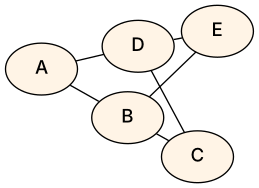
What you see: Nodes distributed organically in 2D space with natural clustering. Perfect for mind maps and conceptual networks where relationships are non-hierarchical.
When to avoid it: With very large graphs (>100 nodes) or highly directional ones.
fdp — force-directed placement
What it does: Similar to neato, but uses a different algorithm (Fruchterman-Reingold). Generally faster on medium graphs.
Useful for:
- Medium-sized undirected graphs
- Social network visualizations (friendships, connections)
- Dependency analysis without strong direction
Example command:
dot -Kfdp -Tsvg network.dot -o network.svg
sfdp — scalable force-directed placement
What it does: Optimized version of fdp for very large graphs (thousands of nodes).
Great for:
- Dependency analysis on complex codebases
- Class graph of an enterprise project
- Complex networks (infrastructure, microservices)
- When
neatoorfdpare too slow
Example command:
dot -Ksfdp -Tsvg dependencies.dot -o dependencies.svg
Tip: Use sfdp when you have more than 100-200 nodes.
circo — circular layout
What it does: Arranges nodes in concentric circles around a central node.
Ideal for:
- Visualizing satellite modules around a central core
- Hub-and-spoke architectures
- Representing components that depend on a central service
Example command:
dot -Kcirco -Tsvg modules.dot -o modules.svg
Visual example:
graph CircoExample {
    graph [layout=circo, fontname="Segoe UI"];
    node [shape=circle, style=filled, fillcolor="#E8F5E9", fontname="Segoe UI"];

    Core -- Module1;
    Core -- Module2;
    Core -- Module3;
    Core -- Module4;
    Core -- Module5;
    Module1 -- Module2;
    Module3 -- Module4;
}

What you see: Central node (Core) in the middle with satellites arranged in a circle around it. Perfect for hub-and-spoke architectures.
twopi — radial layout
What it does: Creates a radial tree layout, with the root node at the center and levels expanding outward.
Perfect for:
- Hierarchical trees (org chart, file system)
- Taxonomies
- Structured mind maps
- Visualizing expansions from a central point
Example command:
dot -Ktwopi -Tsvg tree.dot -o tree.svg
Visual example:
digraph TwopiExample {
    graph [layout=twopi, ranksep=2.0, fontname="Segoe UI"];
    node [shape=box, style="rounded,filled", fillcolor="#FFEBEE", fontsize=11, width=1.0, height=0.5, fontname="Segoe UI"];
    edge [color="#666666", fontname="Segoe UI"];

    CEO [label="CEO", fillcolor="#FFCDD2"];

    CEO -> Engineering [label=""];
    CEO -> Sales [label=""];
    CEO -> Marketing [label=""];

    Engineering -> Dev1 [label=""];
    Engineering -> Dev2 [label=""];

    Sales -> Rep1 [label=""];
    Sales -> Rep2 [label=""];

    Marketing -> Designer [label=""];
    Marketing -> Writer [label=""];
}
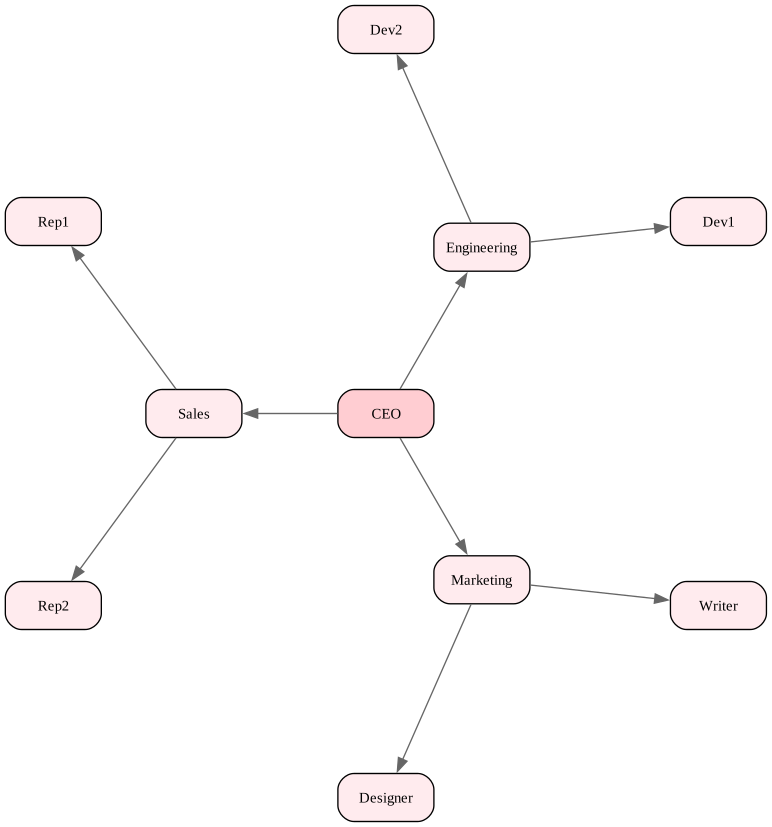
What you see: CEO at center with departments (Engineering, Sales, Marketing) in the first ring, and team members in the outer ring. Clear radial hierarchy perfect for org charts.
How to choose in practice
| Graph type | Recommended engine |
|---|---|
| Flowchart, pipeline, processes | dot |
| Layered architectures | dot |
| Call graph, dependency tree | dot |
| Conceptual network, brainstorming | neato |
| Social network, medium undirected graphs | fdp |
| Large graphs (>200 nodes) | sfdp |
| Central hub with satellites | circo |
| Hierarchical trees, org chart | twopi |
Practical rule: If you have arrows and a clear direction → use dot. Otherwise try neato or fdp.
Types of diagrams and when to use them in a developer’s real life
This is the most substantial section. For each type of diagram you’ll find:
- When to use it in real life
- Recommended attributes
- Complete example
Flowchart: understanding behavior
In daily work it often happens that you need to explain a complex decision flow: a validation procedure with multiple branches, a user onboarding process, or simply the behavior of a function with many nested if/else. The flowchart is the ideal tool for this.
When you need a flowchart:
You’re in the requirements analysis phase and need to understand all possible cases. You’re debugging logic that seems to have gone crazy and want to see visually where the flow branches. You need to write documentation for a complex business process. You’re onboarding a new colleague and want to show them how the authentication system works.
The flowchart visually shows decisions (diamonds), processes (rounded rectangles), and logical flow (arrows). It’s immediate, clear, universal.
Recommended attributes for professional flowcharts:
Use rankdir=TB (top-to-bottom) to follow the standard flowchart convention. Use shape=diamond for decision nodes (if/else conditions). Use style=rounded for process steps, so they stand out from diamonds. Use soft colors (fillcolor) to highlight start (light green), errors (light red), end (gray).
Complete example:
digraph Flow {
    graph [rankdir=TB, nodesep=0.6];
    node [fontname="Segoe UI"];

    Start   [shape=oval, style=filled, fillcolor="#C1F2C7"];
    Check   [shape=diamond, label="Valid input?"];
    Process [shape=box, style="filled,rounded", fillcolor="#F0F4FF"];
    Error   [shape=box, fillcolor="#FFEAEA", style=filled];
    End     [shape=oval, fillcolor="#DDDDDD", style=filled];

    Start -> Check;
    Check -> Process [label="yes"];
    Check -> Error   [label="no"];
    Process -> End;
}
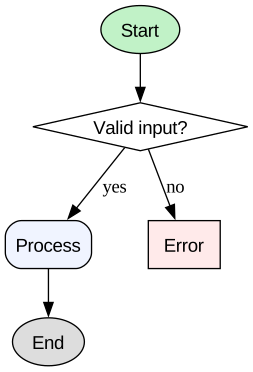
What this example does: Starts from an initial state (Start), goes through validation (Check), and branches into two paths: success (Process) or error (Error). Uses colors to make it immediately clear what is positive and what is negative.
Dependency graphs: understanding software as a system
When working on an existing project, one of the first questions you ask yourself is: “What depends on what?” If you need to refactor a module, you want to know who uses it. If you need to update a library, you want to understand the cascading impact. If you’re designing a new feature, you want to see where it fits in the existing architecture.
The dependency graph is the map of your system. It shows modules, services, classes, or microservices as nodes, and dependencies as arrows. It’s essential for:
Safe refactoring: Before touching a module, see who calls it. Impact analysis: If you modify an API, you immediately see all consumers. Automatic documentation: Generate the graph from code (with tools like Doxygen, Madge, or custom scripts) and keep it updated. Dependency injection mapping: Visualize how Spring, Angular or .NET inject dependencies.
Useful attributes:
Use rankdir=LR (left-to-right) to have a horizontal flow, typical of dependency chains. Use shape=box for modules/services. Use color and penwidth to highlight critical or problematic dependencies (e.g. circular dependencies in red). Use style=dashed for optional or weak dependencies.
Example:
digraph Deps {
    graph [rankdir=LR];
    node [shape=box, style=filled, fillcolor="#F7FAFF", fontname="Segoe UI"];
    edge [color="#555555"];

    UI -> API;
    API -> Auth;
    API -> UserService;
    UserService -> Database [color="#FF5555", penwidth=2, label="critical"];
}
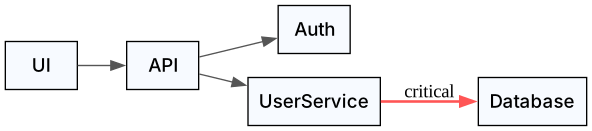
What this example does: Shows a classic web architecture: UI calls API, API depends on Auth and UserService, UserService talks to Database. The critical dependency (UserService → Database) is highlighted in red with thick line: if the DB goes down, everything collapses.
Software architecture: clusters and layers
When you design an architecture or document the existing one, you need to show logical groupings and layer separation. A typical web system has Presentation, Business, Data. A microservices project has logical boundaries (edge, services, datastores). A legacy system might have modules separated by domain.
The architecture diagram with clusters allows you to:
Visualize separate layers: Presentation Layer, Business Layer, Data Layer. Each layer is a colored box containing its components. Show microservice boundaries: Edge Gateway, Services, Datastores. Each boundary is a cluster. Document legacy modules: Isolate modules by responsibility (Auth, Orders, Reporting) so it’s clear who does what. Present architecture to stakeholders: A layered diagram is universal and understandable even by non-technical people.
Useful attributes:
Use subgraph cluster_* to create visual groupings. Use compound=true to allow edges that cross clusters. Use splines=ortho for orthogonal lines, typical of “architect” diagrams. Use shape=cylinder for databases, so they’re immediately recognizable.
Layered architecture example:
digraph Architecture {
    graph [
        rankdir=TB,
        ranksep=0.8,
        nodesep=0.6,
        overlap=false,
        splines=true,
        sep="+0.2"
    ];
    node [shape=box, style="rounded,filled", fillcolor="#F0F4FF", fontname="Segoe UI"];

    subgraph cluster_presentation {
        label="Presentation Layer";
        style=filled;
        color=lightgrey;
        fillcolor="#E8F4F8";
        UI;
    }

    subgraph cluster_business {
        label="Business Layer";
        style=filled;
        color=lightgrey;
        fillcolor="#FFF4E6";
        ServiceA; ServiceB;
    }

    subgraph cluster_data {
        label="Data Layer";
        style=filled;
        color=lightgrey;
        fillcolor="#F0F0F0";
        DB [shape=cylinder, fillcolor="#D0E8FF"];
    }

    UI -> ServiceA;
    UI -> ServiceB;
    ServiceA -> DB;
    ServiceB -> DB;
}
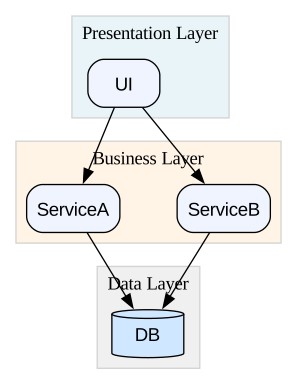
What this example does: Defines three layers with subgraph cluster_*. Presentation contains UI, Business contains two services, Data contains DB (with shape=cylinder). Arrows show the flow: UI → Services → DB. The architecture is immediately understandable.
Microservices Map: understanding a distributed ecosystem
If you work with microservices, you have dozens of services communicating with each other: API Gateway, domain services (Orders, Users, Notifications), databases, queues, caches. When a production incident occurs, the first question is: “Who talks to whom? Where’s the bottleneck?”
The microservices map is your GPS in distributed chaos. You need it for:
Architectural design: Before writing code, draw the map. Identify logical boundaries (edge, core services, datastores). API documentation: Show who calls which service and through which protocol (REST, gRPC, events). Performance analysis: During an incident, you look at the map and immediately understand if the problem is in the API Gateway, in a specific service, or in the shared DB. Post-mortem: After downtime, the map helps reconstruct the failure chain.
Useful attributes:
Use cluster to separate logical boundaries (Edge, Services, Data). Use shape=cylinder for databases, shape=box for services. Use labels on edges to specify protocol (HTTP, gRPC, Kafka). Use shape=plaintext with HTML table for complex services with multiple ports.
Example:
digraph Micro {
    // Global settings (apply to all)
    graph [rankdir=LR, splines=true, nodesep=1.2, ranksep=1.8, overlap=false, sep="+0.4", fontname="Segoe UI"];
    node [shape=box, style="rounded,filled", fillcolor="#E3F2FD", fontname="Segoe UI", fontsize=11];
    edge [color="#555555", arrowsize=0.8, fontsize=10, fontcolor="#333333", fontname="Segoe UI"];

    subgraph cluster_gateway {
        label="Edge Layer";
        fillcolor="#FFF3E0";
        color="#FF9800";
        Gateway [label="API Gateway", fillcolor="#FFE0B2"];
    }

    subgraph cluster_services {
        label="Microservices Layer";
        fillcolor="#E8F5E9";
        color="#4CAF50";
        OrderService [label="Order Service", fillcolor="#C8E6C9"];
        UserService [label="User Service", fillcolor="#C8E6C9"];
        NotificationService [label="Notification Service", fillcolor="#C8E6C9"];
    }

    subgraph cluster_data {
        label="Data Layer";
        fillcolor="#F5F5F5";
        color="#9E9E9E";
        DB [shape=cylinder, label="Postgres\nDB", fillcolor="#BBDEFB"];
        Cache [shape=cylinder, label="Redis\nCache", fillcolor="#FFCCBC"];
    }

    // Edge to Services
    Gateway -> UserService [label="HTTP"];
    Gateway -> OrderService [label="HTTP"];

    // Service to Data
    OrderService -> DB [label="SQL"];
    UserService -> Cache [label="GET/SET"];

    // Service to Service
    NotificationService -> UserService [label="gRPC"];
    OrderService -> NotificationService [label="Event", style=dashed];
}
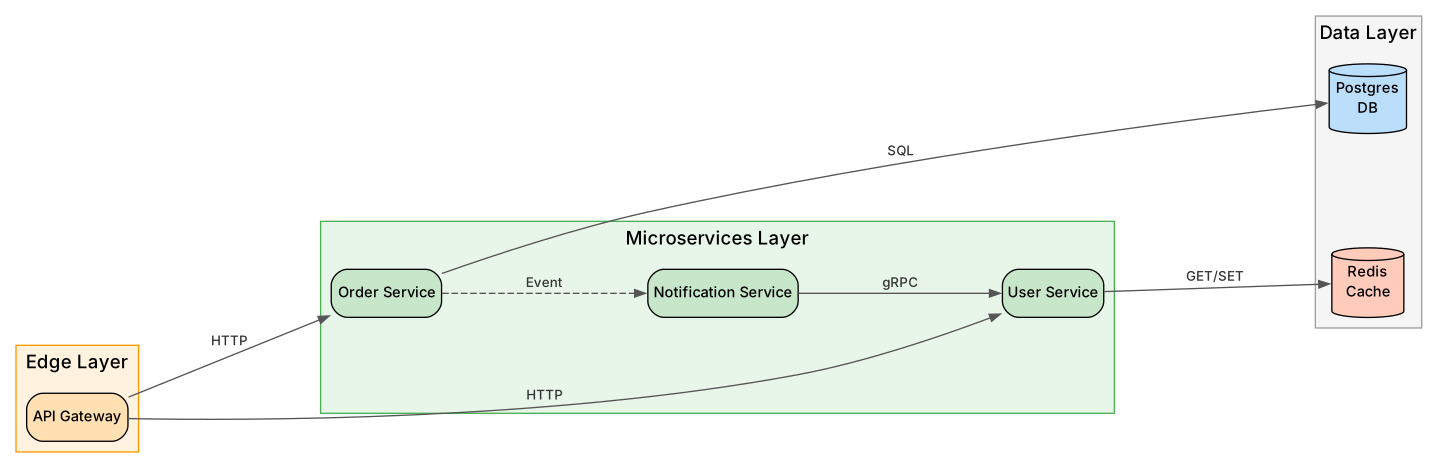
What this example does: Organizes a microservices ecosystem into three colored layers:
- Edge Layer (orange): API Gateway as entry point
- Microservices Layer (green): Three services with clear responsibilities
- Data Layer (gray): Postgres database and Redis cache (cylinders for visual distinction)
Communication patterns shown:
- Gateway → Services: HTTP calls (solid arrows)
- Services → Data: SQL queries and cache operations
- Service-to-Service: gRPC synchronous call and asynchronous event (dashed arrow)
The color-coded clusters immediately show architectural boundaries, and labeled arrows make protocols explicit. Perfect for onboarding, architecture reviews, or incident analysis.
State diagrams: modeling behaviors
Many systems have state-based behavior: an HTTP request can be Idle, Loading, Success, Error. An e-commerce order goes from Draft → Pending → Confirmed → Shipped. An embedded system has power-on, standby, operational, error states. A UI interface has loading, ready, error states.
The state diagram models these behaviors as a graph: each node is a state, each edge is a transition labeled with the event that causes it. It’s essential for:
Designing state machines: Before implementing the state pattern in code, draw the diagram. Documenting protocols: Network protocols (TCP, WebSocket, custom) have precise state machines. The diagram makes them explicit. Modeling UI/UX flow: When designing an app, draw the interface states: loading, ready, error, empty. Debugging embedded systems: If a device gets stuck in a state, the diagram helps you understand which transitions are missing.
Connection with Computer Science theory and design patterns:
State diagrams in DOT directly represent fundamental concepts from Computer Science and software design:
-
FSM (Finite State Machine): A computational model with a finite number of states. The diagram shows all possible states and transitions between them. Used in compilers, parsers, protocol implementations.
-
DFA (Deterministic Finite Automaton): A specific type of FSM where each state has exactly one transition per input symbol. State diagrams are the visual representation of DFAs used in formal language theory and regular expression engines.
-
State Pattern (GoF Design Pattern): An object-oriented design pattern that allows an object to alter its behavior when its internal state changes. The state diagram becomes the blueprint for implementing the pattern: each circle is a class implementing the State interface, each arrow is a state transition method.
When you draw a state diagram, you’re not just making documentation—you’re creating a formal specification that can be directly translated into code (State Pattern), used for validation (DFA), or analyzed for correctness (FSM theory).
Useful attributes:
Use shape=circle for states (standard FSM convention). Use rankdir=LR for horizontal layout, typical of state diagrams. Use label on edges to show the event causing the transition. Use shape=doublecircle for final/terminal states. Use fixedsize=true with width to ensure uniform circle sizes for visual consistency.
Representing initial and final states (FSM/DFA standard):
According to Finite State Machine and DFA conventions:
- Initial state: Use
shape=pointwith smallwidth(e.g., 0.2) to create a black dot representing the entry point - Final/accepting state: Use
shape=doublecircleto create a double-circle border indicating terminal/accepting states - Regular states: Use
shape=circlewithfixedsize=truefor all intermediate states (ensures uniform appearance)
Complete example with proper FSM notation:
digraph States {
    graph [rankdir=LR, fontname="Segoe UI"];
    node [shape=circle, fontsize=12, fixedsize=true, width=0.9, fontname="Segoe UI"];
    edge [fontname="Segoe UI"];

    // Initial state (black dot)
    START [shape=point, width=0.2, fixedsize=true];

    // Final state (double circle)
    END [shape=doublecircle, fixedsize=true, width=0.9];

    // Regular states
    Idle; Loading; Ready; Error;

    // Transitions
    START -> Idle;
    Idle -> Loading   [label="start"];
    Loading -> Ready  [label="success"];
    Loading -> Error  [label="fail"];
    Error -> Idle     [label="reset"];
    Ready -> END      [label="finish"];
}
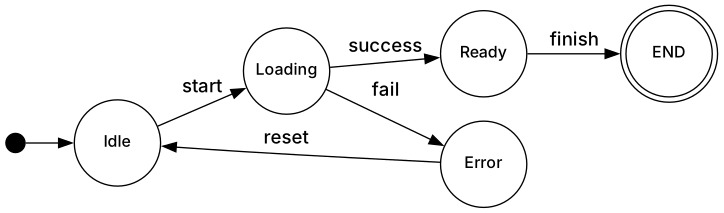
What this example does: Models the lifecycle of an asynchronous request following FSM/DFA conventions:
- START (
shape=point): Black dot indicating the entry point of the state machine - END (
shape=doublecircle): Double circle indicating the accepting/terminal state - Regular states (Idle, Loading, Ready, Error): Uniform circles (
fixedsize=true, width=0.9) representing intermediate states - Labeled transitions: Arrows showing events that trigger state changes
The machine begins at START, enters Idle, then transitions to Loading. From Loading it can succeed (→ Ready) or fail (→ Error). Errors can be reset back to Idle. Success leads to the final END state.
From diagram to code (State Pattern implementation):
This diagram can be directly translated into the State Pattern:
// Each circle becomes a State class
interface State {
    void start();
    void success();
    void fail();
    void reset();
    void finish();
}

class IdleState implements State { ... }
class LoadingState implements State { ... }
class ReadyState implements State { ... }
class ErrorState implements State { ... }

// Transitions become method implementations
class LoadingState implements State {
    void success() {
        context.setState(new ReadyState());
    }
    void fail() {
        context.setState(new ErrorState());
    }
}
The diagram serves as both documentation and specification for the implementation.
Class diagrams with record
When you design an object-oriented system, or want to document an application’s domain, the class diagram is the standard. It shows classes with attributes and methods, and relationships between them (inheritance, composition, dependency).
DOT is not UML, but with shape=record you get something very similar and perfectly readable. It’s useful for:
Initial design: Before writing code, draw the main domain classes. Identify attributes, methods, relationships. Refactoring: When you need to restructure a module, draw the current state and the desired one. Compare the two diagrams. Domain-Driven Design (DDD): Model entities, value objects, aggregates. The diagram helps visualize domain boundaries. Documentation: Generate the diagram automatically from code (with tools like Doxygen) and keep it updated.
Useful attributes:
Use shape=record to create boxes with separate sections (class name | attributes | methods). Use fontname="Segoe UI" or monospace to make it look like code. Use arrowhead=onormal for inheritance (hollow arrow, UML standard). Use \l (backslash-l) to left-align text inside records.
Example:
digraph Classes {
    node [shape=record, fontname="Segoe UI"];

    Person [label="{Person|name: string\l age: int\l|greet()}"];
    Employee [label="{Employee|id: int\l role: string\l|work()}"];

    Person -> Employee [arrowhead="onormal"];
}
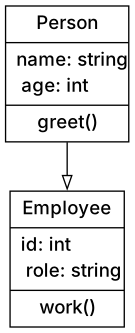
What this example does: Defines two classes: Person (with attributes name, age, method greet) and Employee (with id, role, method work). Person is the superclass of Employee (arrow with arrowhead=onormal, UML standard for inheritance). The \l left-aligns text inside records.
Professional ER diagrams with HTML-label
If you work with databases, sooner or later you need to draw the table schema: primary keys, foreign keys, 1:N or N:N relationships. The Entity-Relationship (ER) diagram is the standard for this.
DOT supports HTML tables inside nodes with shape=plaintext, allowing you to create clean and professional ER diagrams. It’s essential for:
Database design: Before writing migrations, draw the schema. Identify entities, attributes, relationships. Validate the design with the team. Data modeling: When designing a new module, start with the data model. The ER diagram helps you reason about normalization and performance. Reverse engineering: When you inherit a legacy DB without documentation, generate the ER diagram from the DB itself (with tools like SchemaSpy or pg_dump + script) to understand the structure. Documentation: The ER diagram is understandable even by non-developers (product managers, business analysts).
Useful attributes:
Use shape=plaintext to enable HTML label. Use HTML <TABLE> to create structured boxes with header (table name) and rows (fields). Use arrowhead=crow for 1:N relationships (ER diagram standard). Use label="1:N" on edges to make cardinality explicit.
Example:
digraph ER {
    node [shape=plaintext];

    User [label=<
        <TABLE BORDER="0" CELLBORDER="1" CELLSPACING="0">
            <TR><TD><B>User</B></TD></TR>
            <TR><TD>id PK</TD></TR>
            <TR><TD>email</TD></TR>
        </TABLE>
    >];

    Order [label=<
        <TABLE BORDER="0" CELLBORDER="1" CELLSPACING="0">
            <TR><TD><B>Order</B></TD></TR>
            <TR><TD>id PK</TD></TR>
            <TR><TD>user_id FK</TD></TR>
        </TABLE>
    >];

    User -> Order [label="1:N", arrowhead="crow"];
}
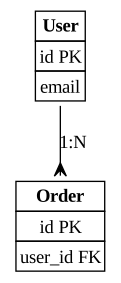
What this example does: Defines two tables (User and Order) using HTML. Each table has a bold header and rows for fields. The arrow with arrowhead=crow and label="1:N" shows the relationship: one User has many Orders (foreign key user_id in Order).
CI/CD Pipeline diagrams
If you work in a team doing continuous integration and deployment, you have a pipeline that executes automatic steps: build, test, static analysis, packaging, deploy, monitoring. When something breaks, or when you onboard a new developer, you need a diagram showing the entire pipeline.
The CI/CD diagram visualizes the automatic flow from commit to deploy. It’s useful for:
DevOps and SRE: Document the existing pipeline. Identify bottlenecks (which step takes the most time?). Team onboarding: A new developer looks at the diagram and immediately understands what happens after a git push. Optimization: Want to parallelize some steps? The diagram shows you which depend on which. Debugging: Pipeline failing? The diagram helps you understand at which step and why (dashed arrow for retries).
Useful attributes:
Use rankdir=LR for horizontal flow (typical of pipelines). Use shape=box with style=filled for steps, coloring them by type (build=blue, test=green, deploy=red). Use style=dotted with label="retry" to show automatic retry mechanisms. Use label on edges to indicate conditions (e.g. “only on master branch”).
Example:
digraph CICD {
    graph [rankdir=LR];
    node [shape=box, style=filled, fillcolor="#F8FBFF"];

    Code -> Build -> Test -> Package -> Deploy -> Monitor;

    Test -> Build [style=dotted, label="retry"];
}

What this example does: Shows a classic pipeline: Code → Build → Test → Package → Deploy → Monitor. The dashed arrow from Test to Build shows an automatic retry in case of test failure. It’s a linear flow, immediately understandable.
Reducing complexity: conceptual maps and analysis
Not all diagrams need to be hierarchical or directional. Sometimes you need to visualize conceptual relationships without a fixed structure: during brainstorming, when doing collective design with the team, or when you want to map conceptual dependencies between technological areas.
The conceptual map doesn’t have a “start” or “end”: it’s a network of organically connected nodes. It’s useful for:
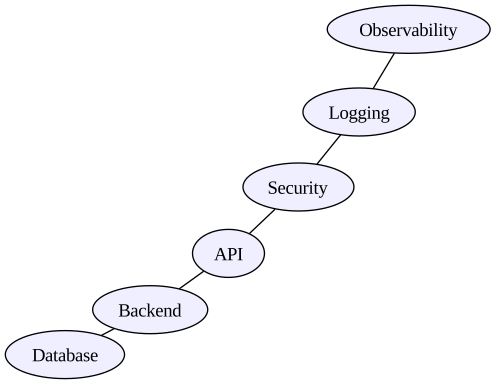
Brainstorming: Start from a central idea and add connected nodes while discussing with the team. The map grows naturally. Collective design: During a design session, map components and their relationships. You don’t know the hierarchy yet, but you know “Backend talks to Database and API”. Conceptual dependency analysis: You want to understand which technological areas are connected (e.g. Security → Logging → Observability). High-level documentation: For non-technical stakeholders, a conceptual map is more accessible than a hierarchical graph.
Useful attributes:
Use neato or fdp engine instead of dot, to get an organic layout based on physical forces. Use shape=ellipse for conceptual nodes (not processes). Use style=filled with soft colors for visual groupings. Use undirected graphs (graph instead of digraph) if relationships are bidirectional.
Example with neato engine:
graph Concepts {
    layout=neato;
    node [shape=ellipse, style=filled, fillcolor="#EFEFFF"];

    Backend -- Database;
    Backend -- API;
    API -- Security;
    Security -- Logging;
    Logging -- Observability;
}
Avoiding overlaps: overlap and splines
One of the most common problems when drawing complex graphs is overlapping arrows, text and nodes. Graphviz offers specific attributes to control this behavior and make diagrams more readable.
The problem: unwanted overlaps
When you have many nodes and arrows, especially with hierarchical layouts or with splines=ortho, arrows can overlap cluster labels or nodes. Here’s a typical example of the problem:
digraph OverlapProblem {
    graph [rankdir=TB, splines=ortho];
    node [shape=box, style=rounded];

    subgraph cluster_a {
        label="Component A";
        A1; A2;
    }

    subgraph cluster_b {
        label="Component B";
        B1; B2;
    }

    subgraph cluster_c {
        label="Component C";
        C1; C2;
    }

    A1 -> B1;
    A2 -> B2;
    B1 -> C1;
    B2 -> C2;
    A1 -> C1;
}
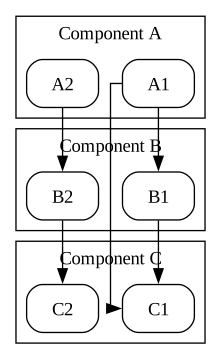
Problem: With splines=ortho arrows can cross cluster labels making the diagram confusing.
The solution: overlap and splines
Graphviz offers several attributes to solve this problem:
overlap — avoid overlaps between nodes
graph [overlap=false];
Main options:
falseorvoronoi— avoid overlaps (better quality, slower)scale— scale the graph to avoid overlapsscalexy— scale with different proportions on X and Ytrue(default) — allow overlaps
splines — control edge shape
graph [splines=true];
Options:
trueorspline— smooth curves that avoid nodes (recommended)curved— slightly curved edgespolyline— broken linesortho— orthogonal lines (can cause overlaps!)lineorfalse— straight lines
sep — extra margin between elements
graph [sep="+0.2"];
Adds margin between nodes and edges (in inches). The + means “add to default value”.
ranksep and nodesep — spacing between levels and nodes
graph [ranksep=0.8, nodesep=0.6];
Increases vertical (ranksep) and horizontal (nodesep) space between elements.
Improved example
Here’s the same graph with optimized attributes to avoid overlaps:
digraph OverlapSolved {
    graph [
        rankdir=TB,
        ranksep=0.8,
        nodesep=0.6,
        overlap=false,
        splines=true,
        sep="+0.2"
    ];
    node [shape=box, style=rounded];

    subgraph cluster_a {
        label="Component A";
        style=filled;
        fillcolor="#E8F4F8";
        A1; A2;
    }

    subgraph cluster_b {
        label="Component B";
        style=filled;
        fillcolor="#FFF4E6";
        B1; B2;
    }

    subgraph cluster_c {
        label="Component C";
        style=filled;
        fillcolor="#F0F0F0";
        C1; C2;
    }

    A1 -> B1;
    A2 -> B2;
    B1 -> C1;
    B2 -> C2;
    A1 -> C1;
}
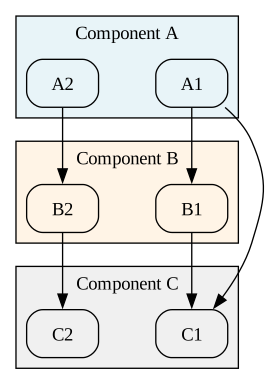
Result: Arrows now avoid nodes and labels, the graph is more spacious and readable. Background colors help distinguish clusters.
When to use what
| Scenario | Recommended attributes |
|---|---|
| Complex diagrams with many nodes | overlap=false, splines=true |
| Hierarchical graphs (flowcharts, architectures) | ranksep=0.8, nodesep=0.6, splines=true |
| Graphs with clusters | overlap=false, sep="+0.2" |
| “Architect” diagrams with straight lines | splines=polyline (avoid ortho) |
| Small and simple graphs | default (no need to modify) |
Practical rule: Always start with overlap=false and splines=true if you have more than 10 nodes or use clusters.
Complete example with all best practices
Here’s a real example combining all recommended attributes: microservices architecture with 4 layers, many nodes and edges, colored clusters, optimized spacing:
digraph CompleteExample {
    graph [
        rankdir=TB,
        ranksep=1.0,
        nodesep=0.7,
        overlap=false,
        splines=true,
        sep="+0.25"
    ];
    node [shape=box, style="rounded,filled", fillcolor="#F0F4FF", fontname="Segoe UI", fontsize=11];
    edge [color="#555555", arrowsize=0.8];

    subgraph cluster_frontend {
        label="Frontend Layer";
        style=filled;
        fillcolor="#E8F4F8";
        color="#5A9FD4";

        WebUI [label="Web UI"];
        MobileApp [label="Mobile App"];
    }

    subgraph cluster_api {
        label="API Gateway Layer";
        style=filled;
        fillcolor="#FFF4E6";
        color="#E8A87C";

        Gateway [label="API Gateway"];
        LoadBalancer [label="Load Balancer"];
    }

    subgraph cluster_services {
        label="Microservices Layer";
        style=filled;
        fillcolor="#F0F8E8";
        color="#90C290";

        AuthService [label="Auth Service"];
        UserService [label="User Service"];
        OrderService [label="Order Service"];
        PaymentService [label="Payment Service"];
    }

    subgraph cluster_data {
        label="Data Layer";
        style=filled;
        fillcolor="#F5F5F5";
        color="#999999";

        UsersDB [shape=cylinder, fillcolor="#D0E8FF", label="Users DB"];
        OrdersDB [shape=cylinder, fillcolor="#D0E8FF", label="Orders DB"];
        Cache [shape=box, fillcolor="#FFE8D0", label="Redis Cache"];
    }

    // Frontend to Gateway
    WebUI -> LoadBalancer [label="HTTPS"];
    MobileApp -> LoadBalancer [label="HTTPS"];

    // Gateway to Services
    LoadBalancer -> Gateway;
    Gateway -> AuthService [label="gRPC"];
    Gateway -> UserService [label="REST"];
    Gateway -> OrderService [label="REST"];

    // Service dependencies
    OrderService -> PaymentService [label="API call"];
    UserService -> AuthService [label="validate"];
    PaymentService -> AuthService [label="validate"];

    // Data access
    AuthService -> UsersDB;
    UserService -> UsersDB;
    UserService -> Cache [style=dashed, label="cache"];
    OrderService -> OrdersDB;
    OrderService -> Cache [style=dashed, label="cache"];
}
Command line:
dot -Tsvg overlap_complete.dot -o overlap_complete.svg
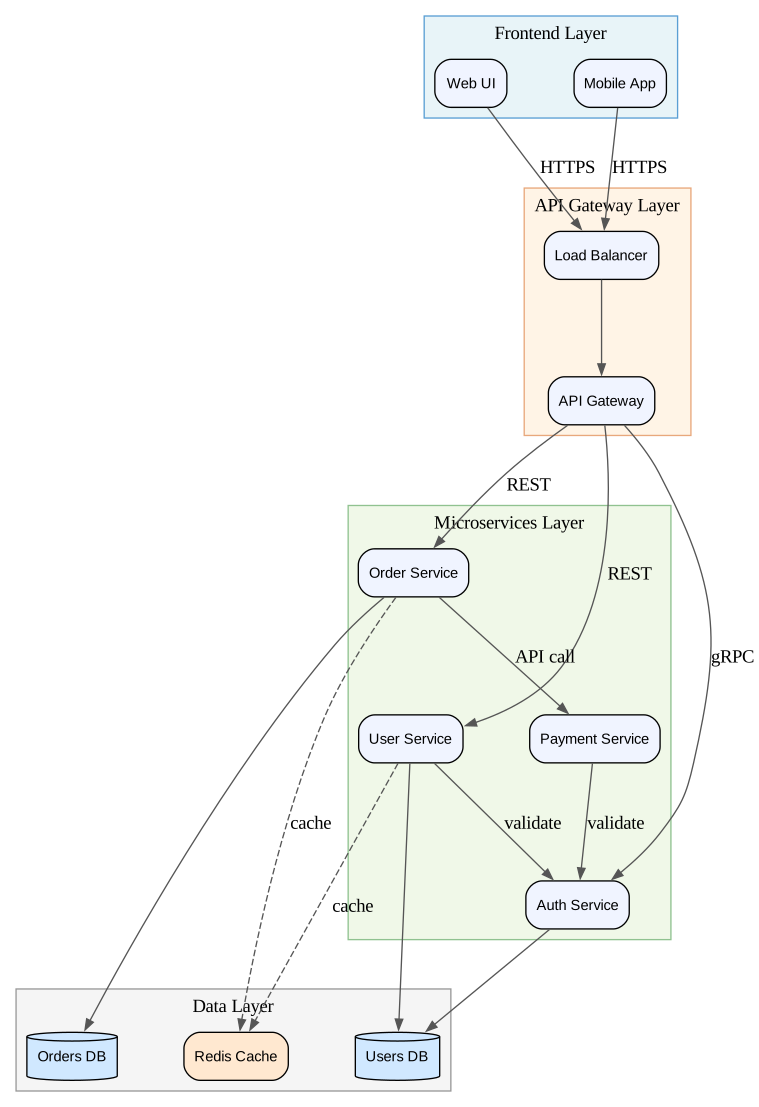
What this example demonstrates:
- overlap=false: No overlaps between nodes, even with 13 nodes and 4 clusters
- splines=true: Curved arrows that elegantly avoid nodes and labels
- sep="+0.25": Extra margin that keeps everything readable
- ranksep=1.0, nodesep=0.7: Generous spacing between layers and nodes
- Colored clusters: Each layer has a distinctive color for immediate identification
- Labels on edges: Protocols (HTTPS, gRPC, REST) and connection type explicit
- Dashed style for cache: Optional dependencies visualized differently
- Cylinder shape for DB: Databases immediately recognizable
This is the perfect template for documenting complex architectures in a professional and readable way.
Color Schemes: professional ready-to-use palettes
Graphviz includes predefined color schemes based on professional palettes from ColorBrewer. Instead of choosing colors manually, you can use palettes tested for readability, accessibility and professionalism.
How color schemes work
Use the colorscheme attribute to select a palette, then use numbers 1-9 (or more, depends on the scheme) instead of hex codes:
node [colorscheme=set39, fillcolor=1, color=2];
Color schemes are organized into categories:
- Qualitative (set1, set2, set3, pastel1, pastel2, dark2, paired, accent) — For distinct categories
- Sequential (blues3-9, greens3-9, reds3-9, purples3-9, oranges3-9) — For progressive values
- Diverging (rdylgn3-11, spectral3-11, rdbu3-11) — For data with central point
Complete reference: graphviz.org/docs/attrs/colorscheme/
Practical examples with professional color schemes
Each example uses the same diagram (5-step process) but with different palettes. Compare and choose the one most suitable for your use case.
Example 1: Set39 (qualitative, vibrant)
Great for distinguishing different categories, colored presentations, dashboards.
digraph ProcessSet39 {
    graph [rankdir=LR, bgcolor=white];
    node [shape=box, style="rounded,filled", colorscheme=set39, fontname=Arial];
    edge [colorscheme=set39, penwidth=2];

    Start [fillcolor=1, label="Start"];
    Validate [fillcolor=2, label="Validate"];
    Process [fillcolor=3, label="Process"];
    Store [fillcolor=4, label="Store"];
    Notify [fillcolor=5, label="Notify"];

    Start -> Validate [color=1];
    Validate -> Process [color=2];
    Process -> Store [color=3];
    Store -> Notify [color=4];
}
Command line:
dot -Tsvg colorscheme_set39.dot -o colorscheme_set39.svg

Example 2: Pastel19 (qualitative, soft)
Pastel colors for technical documentation, wikis, blog posts. Less impactful but more readable long-term.
digraph ProcessPastel {
    graph [rankdir=LR, bgcolor=white];
    node [shape=box, style="rounded,filled", colorscheme=pastel19, fontname=Arial, fontcolor="#333333"];
    edge [colorscheme=dark28, penwidth=2];

    Start [fillcolor=1, label="Start"];
    Validate [fillcolor=3, label="Validate"];
    Process [fillcolor=5, label="Process"];
    Store [fillcolor=7, label="Store"];
    Notify [fillcolor=9, label="Notify"];

    Start -> Validate [color=1];
    Validate -> Process [color=3];
    Process -> Store [color=5];
    Store -> Notify [color=7];
}
Command line:
dot -Tsvg colorscheme_pastel.dot -o colorscheme_pastel.svg

Example 3: Blues9 (sequential, progression)
Ideal for showing increasing intensity, priorities, maturation phases.
digraph ProcessBlues {
    graph [rankdir=LR, bgcolor=white];
    node [shape=box, style="rounded,filled", colorscheme=blues9, fontname=Arial];
    edge [color="#2171B5", penwidth=2];

    Start [fillcolor=2, fontcolor=black, label="Start"];
    Validate [fillcolor=4, fontcolor=white, label="Validate"];
    Process [fillcolor=6, fontcolor=white, label="Process"];
    Store [fillcolor=8, fontcolor=white, label="Store"];
    Notify [fillcolor=9, fontcolor=white, label="Notify"];

    Start -> Validate -> Process -> Store -> Notify;
}
Command line:
dot -Tsvg colorscheme_blues.dot -o colorscheme_blues.svg

Example 4: RdYlGn9 (diverging, traffic light)
Perfect for success/warning/error states, health checks, monitoring.
digraph ProcessStatus {
    graph [rankdir=LR, bgcolor=white];
    node [shape=box, style="rounded,filled", colorscheme=rdylgn9, fontname=Arial, fontcolor=black];
    edge [penwidth=2, color="#666666"];

    Idle [fillcolor=5, label="Idle\n(neutral)"];
    Starting [fillcolor=7, label="Starting\n(ok)"];
    Running [fillcolor=9, label="Running\n(good)"];
    Warning [fillcolor=4, label="Warning"];
    Error [fillcolor=1, label="Error"];

    Idle -> Starting -> Running;
    Running -> Warning [style=dashed];
    Warning -> Error [style=dashed];
    Running -> Idle [label="stop"];
}
Command line:
dot -Tsvg colorscheme_rdylgn.dot -o colorscheme_rdylgn.svg

Example 5: Paired12 (qualitative, pairs)
Uses coordinated color pairs. Great for comparisons, A/B versions, relationships.
digraph ProcessPaired {
    graph [rankdir=TB, bgcolor=white];
    node [shape=box, style="rounded,filled", colorscheme=paired12, fontname=Arial];
    edge [colorscheme=paired12, penwidth=2];

    subgraph cluster_v1 {
        label="Version 1.x";
        style=filled;
        fillcolor="#F0F0F0";
        V1_Start [fillcolor=1, label="Start v1"];
        V1_Process [fillcolor=1, label="Process v1"];
        V1_End [fillcolor=1, label="End v1"];
        V1_Start -> V1_Process -> V1_End;
    }

    subgraph cluster_v2 {
        label="Version 2.x";
        style=filled;
        fillcolor="#F8F8F8";
        V2_Start [fillcolor=2, label="Start v2"];
        V2_Process [fillcolor=2, label="Process v2"];
        V2_End [fillcolor=2, label="End v2"];
        V2_Start -> V2_Process -> V2_End;
    }

    V1_Start -> V2_Start [label="upgrade", color=4, style=dashed];
}
Command line:
dot -Tsvg colorscheme_paired.dot -o colorscheme_paired.svg

Example 6: Accent8 (qualitative, strong contrasts)
Maximum contrast between elements. For highlighting important differences.
digraph ProcessAccent {
    graph [rankdir=LR, bgcolor="#F5F5F5"];
    node [shape=box, style="rounded,filled", colorscheme=accent8, fontname=Arial, fontcolor=black];
    edge [colorscheme=accent8, penwidth=2];

    Input [fillcolor=1, label="Input"];
    Parse [fillcolor=2, label="Parse"];
    Transform [fillcolor=3, label="Transform"];
    Validate [fillcolor=4, label="Validate"];
    Output [fillcolor=5, label="Output"];

    Input -> Parse [color=1];
    Parse -> Transform [color=2];
    Transform -> Validate [color=3];
    Validate -> Output [color=4];
    Validate -> Parse [color=6, label="retry", style=dashed];
}
Command line:
dot -Tsvg colorscheme_accent.dot -o colorscheme_accent.svg

When to use which color scheme
| Scenario | Recommended Color Scheme |
|---|---|
| Different categories, presentations | set39, set28, dark28 |
| Technical documentation, wikis | pastel19, pastel28 |
| Progression, priorities, levels | blues9, greens9, purples9, oranges9 |
| States (ok/warning/error) | rdylgn9, rdylbu9, spectral9 |
| Comparisons, A/B versions | paired12, paired11 |
| Maximum contrast | accent8, set39 |
| Accessibility (color blindness) | set2, dark2 (ColorBrewer safe) |
Combining color schemes
You can use different schemes for nodes and edges:
node [colorscheme=pastel19, fillcolor=3];
edge [colorscheme=dark28, color=2];
Tip: Always test colors with ColorBrewer to verify accessibility and printability.
Advanced techniques: ports, ranks, compound edges
Ports in records — Connect edges to specific fields of a record using the syntax node:port:
ClassA:field1 -> ClassB:field2;
Force nodes to the same level — Use rank=same to position multiple nodes on the same horizontal line:
{ rank=same; A; B; C; }
Compound edges between clusters — Connect entire clusters instead of individual nodes with lhead and ltail:
edge [lhead=cluster_B, ltail=cluster_A];
Orthogonal edges — Create edges with right angles for an “architect” style:
graph [splines=ortho];
Professional style: practical tips
- Use coherent palettes.
- Avoid overly bright gradients.
- Use
Inter,ArialorRobotofor readability. - Use
orthofor “architect” edges. - Maintain adequate margins (
nodesep,ranksep). - Prefer SVG for quality in blogs.
- Keep DOT files versioned.
Ready-to-use graphic styles
Here are 5 stylistic variants for the same state diagram, ready to copy and adapt to your diagrams. Each style defines colors, fonts, sizes and shapes to create a coherent look.
Style 1: Corporate Blue (professional, formal)
Blue/gray palette, Arial font, clean style for corporate presentations.
digraph CorporateBlue {
    graph [
        rankdir=LR,
        bgcolor="#F8F9FA",
        fontname="Segoe UI",
        fontsize=12
    ];
    node [
        shape=box,
        style="rounded,filled",
        fillcolor="#E3F2FD",
        color="#1976D2",
        fontname="Segoe UI",
        fontsize=11,
        fontcolor="#1565C0",
        penwidth=2
    ];
    edge [
        color="#1976D2",
        fontname="Segoe UI",
        fontsize=10,
        fontcolor="#424242"
    ];

    Idle [label="Idle"];
    Processing [label="Processing"];
    Complete [label="Complete"];

    Idle -> Processing [label="start"];
    Processing -> Complete [label="finish"];
    Complete -> Idle [label="reset"];
    Processing -> Idle [label="cancel"];
}
Command line:
dot -Tsvg style_corporate.dot -o style_corporate.svg
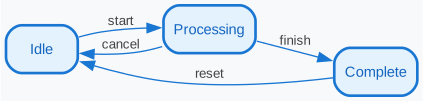
Style 2: Dark Mode (modern, tech)
Dark background, light text, green/cyan palette for modern UIs and developer tools.
digraph DarkMode {
    graph [
        rankdir=LR,
        bgcolor="#1E1E1E",
        fontname="Consolas",
        fontsize=12
    ];
    node [
        shape=box,
        style="rounded,filled",
        fillcolor="#2D2D30",
        color="#00D9FF",
        fontname="Consolas",
        fontsize=11,
        fontcolor="#E0E0E0",
        penwidth=2
    ];
    edge [
        color="#00D9FF",
        fontname="Consolas",
        fontsize=10,
        fontcolor="#B0B0B0"
    ];

    Idle [label="Idle"];
    Processing [label="Processing"];
    Complete [label="Complete"];

    Idle -> Processing [label="start"];
    Processing -> Complete [label="finish"];
    Complete -> Idle [label="reset"];
    Processing -> Idle [label="cancel"];
}
Command line:
dot -Tsvg style_dark.dot -o style_dark.svg
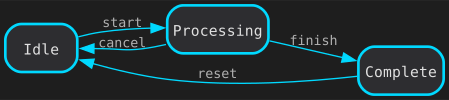
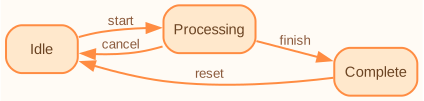
Style 3: Warm Minimal (soft, readable)
Warm orange/beige palette, sans-serif, great for technical documentation.
digraph WarmMinimal {
    graph [
        rankdir=LR,
        bgcolor="#FFFBF5",
        fontname="Segoe UI",
        fontsize=12
    ];
    node [
        shape=box,
        style="rounded,filled",
        fillcolor="#FFE8CC",
        color="#FF8C42",
        fontname="Segoe UI",
        fontsize=11,
        fontcolor="#6B4423",
        penwidth=1.5
    ];
    edge [
        color="#FF8C42",
        fontname="Segoe UI",
        fontsize=10,
        fontcolor="#8B5A3C",
        penwidth=1.5
    ];

    Idle [label="Idle"];
    Processing [label="Processing"];
    Complete [label="Complete"];

    Idle -> Processing [label="start"];
    Processing -> Complete [label="finish"];
    Complete -> Idle [label="reset"];
    Processing -> Idle [label="cancel"];
}
Command line:
dot -Tsvg style_warm.dot -o style_warm.svg
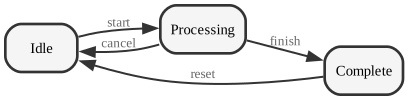
Style 4: Monochrome (elegant, printable)
Black and white, grayscale gradations, perfect for printing and formal documentation.
digraph Monochrome {
    graph [
        rankdir=LR,
        bgcolor="white",
        fontname="Segoe UI",
        fontsize=12
    ];
    node [
        shape=box,
        style="rounded,filled",
        fillcolor="#F5F5F5",
        color="#333333",
        fontname="Segoe UI",
        fontsize=11,
        fontcolor="#000000",
        penwidth=2
    ];
    edge [
        color="#333333",
        fontname="Segoe UI",
        fontsize=10,
        fontcolor="#666666",
        penwidth=1.5
    ];

    Idle [label="Idle"];
    Processing [label="Processing"];
    Complete [label="Complete"];

    Idle -> Processing [label="start"];
    Processing -> Complete [label="finish"];
    Complete -> Idle [label="reset"];
    Processing -> Idle [label="cancel"];
}
Command line:
dot -Tsvg style_mono.dot -o style_mono.svg
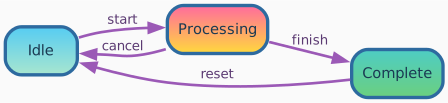
Style 5: Vibrant Gradient (creative, impactful)
Vibrant colors with gradients, great for presentations and visually appealing slides.
digraph VibrantGradient {
    graph [
        rankdir=LR,
        bgcolor="#FAFAFA",
        fontname="Segoe UI",
        fontsize=12
    ];
    node [
        shape=box,
        style="rounded,filled",
        fillcolor="#A8E6CF:#56CCF2",
        gradientangle=90,
        color="#2D6A9F",
        fontname="Segoe UI",
        fontsize=11,
        fontcolor="#1A3A52",
        penwidth=2.5
    ];
    edge [
        color="#9B59B6",
        fontname="Segoe UI",
        fontsize=10,
        fontcolor="#5B3A72",
        penwidth=2
    ];

    Idle [label="Idle"];
    Processing [label="Processing", fillcolor="#FFD93D:#FF6B9D", gradientangle=90];
    Complete [label="Complete", fillcolor="#6BCF7F:#4ECDC4", gradientangle=90];

    Idle -> Processing [label="start"];
    Processing -> Complete [label="finish"];
    Complete -> Idle [label="reset"];
    Processing -> Idle [label="cancel"];
}
Command line:
dot -Tsvg style_vibrant.dot -o style_vibrant.svg
How to use these styles
Copy the graph, node, edge block of the style you prefer and apply it to your diagrams. You can then customize:
- Colors: replace hex codes with your palette
- Fonts: use
fontname="FontName"(Arial, Helvetica, Courier, Times, Verdana, Consolas) - Sizes:
fontsizefor text,penwidthfor border and arrow thickness - Shape:
box,ellipse,circle,diamond,cylinder,record - Gradients: use
fillcolor="color1:color2"withgradientangle(only some output formats)
Notes on font compatibility
Fonts must be installed on the system where you generate images:
- Universal fonts (work everywhere):
Arial,Helvetica,Times,Times-Roman,Courier - Modern fonts (verify availability):
Verdana,Consolas,Roboto,Inter - Windows: most fonts are already installed
- macOS: excellent support for standard fonts
- Linux: install
fonts-liberationorfonts-dejavuto have Arial/Helvetica equivalents - CI/CD: use base fonts or include fonts in Docker container
If a font is not available, Graphviz uses a fallback (usually Times). To be safe, always use base fonts or test generation on the production environment.
Workflow: how to integrate Graphviz in real work
-
Put
.gvfiles in the repo. -
Generate SVGs automatically in CI:
dot -Tsvg diagram.gv -o diagram.svg -
Inject SVGs into documentation (README, wiki, blog).
-
Update diagrams with each refactoring.
-
Use diff and versioning of DOT files as you would with code.
Troubleshooting: common errors and solutions
Error: “syntax error in line X near…”
- Cause: Invalid DOT syntax
- Solution: Check for missing semicolons, unclosed braces, unmatched quotes
- Example:
A -> Bmust end with;→A -> B;
Error: “Warning: Unable to find font…”
- Cause: The specified font is not installed on the system
- Solution: Use universal fonts (Arial, Helvetica, Times) or install the required font
- Verify available fonts:
dot -vshows available fonts
The diagram is too big/small
- Solution 1: Add
graph [size="8,6"]to limit dimensions (in inches) - Solution 2: Use
graph [ratio=compress]to compress automatically - Solution 3: Generate PNG with custom DPI:
dot -Tpng -Gdpi=150 file.dot -o file.png
Arrows overlap nodes
- Solution: Add
graph [overlap=false, splines=true](see “Avoiding overlaps” section)
Nodes are all aligned horizontally instead of vertically
- Solution: Use
graph [rankdir=TB]for top-to-bottom (default is LR = left-to-right)
The cluster doesn’t appear
- Cause: Cluster name doesn’t start with
cluster_ - Solution: Rename
subgraph mygrouptosubgraph cluster_mygroup
SVG output too large (file size)
- Cause: SVG with many elements
- Solution 1: Use PNG instead of SVG for very complex graphs
- Solution 2: Optimize with
svgo:svgo input.svg -o output.svg
Graph doesn’t generate (no output, no error)
- Cause: Incorrect command or wrong redirect
- Verify: Use
-vfor verbose:dot -v -Tsvg input.dot -o output.svg - Quick test:
echo "digraph{A->B}" | dot -Tsvg > test.svg
Edge labels are not visible
- Cause: Labels too long or font too small
- Solution: Increase
fontsizeon edges or use\nto break labels on multiple lines
Best Practices for Clean DOT Code
Don’t Repeat Yourself (DRY)
Define attributes once at the top level instead of repeating them on every element.
❌ Bad (repetitive):
digraph {
    node [fontname="Segoe UI"];
    A [fontname="Segoe UI", shape=box];
    B [fontname="Segoe UI", shape=box];
    C [fontname="Segoe UI", shape=box];
}
✅ Good (DRY):
digraph {
    // Define once, applies to all
    graph [fontname="Segoe UI"];
    node [fontname="Segoe UI", shape=box];
    edge [fontname="Segoe UI"];

    A; B; C;  // Inherit all attributes
}
Key principle: Use graph, node, and edge declarations to set defaults. Only override when a specific element needs different attributes.
Use Comments
Add comments to explain complex sections:
digraph {
    // Global styling
    graph [rankdir=LR, fontname="Segoe UI"];

    // Core components
    A -> B;

    // Error handling path
    B -> Error [style=dashed, color=red];
}
Organize Large Graphs
Group related declarations:
digraph {
    // === Configuration ===
    graph [rankdir=TB];
    node [shape=box];

    // === Services ===
    ServiceA; ServiceB; ServiceC;

    // === Databases ===
    DB1 [shape=cylinder];
    DB2 [shape=cylinder];

    // === Connections ===
    ServiceA -> DB1;
    ServiceB -> DB2;
}
DOT Templates + Graphviz Commands (CLI)
Each template includes:
-
DOT snippet
-
CLI command to generate the image
For consistency I use SVG format, but you can replace -Tsvg with:
-Tpng-Tpdf-Tjpg-Tgif
And you can save the DOT input in template.dot or use pipe.
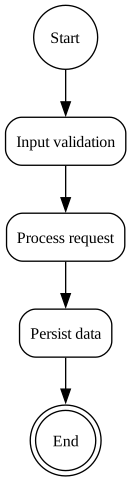
Flowchart
Template 1 – Basic process
digraph FlowBasic {
    graph [rankdir=TB];
    node [shape=rectangle, style=rounded, fontsize=12];

    Start [label="Start", shape=circle];
    Step1 [label="Input validation"];
    Step2 [label="Process request"];
    Step3 [label="Persist data"];
    End [label="End", shape=doublecircle];

    Start -> Step1 -> Step2 -> Step3 -> End;
}
Command line:
dot -Tsvg FlowBasic.dot -o FlowBasic.svg
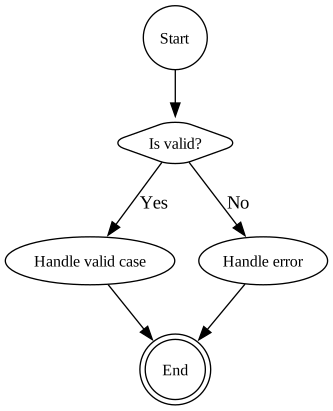
Template 2 – Branching (if/else)
digraph FlowIfElse {
    graph [rankdir=TB];
    node [fontsize=12, style=rounded];

    Start [shape=circle];
    Check [shape=diamond, label="Is valid?"];
    A [label="Handle valid case"];
    B [label="Handle error"];
    End [shape=doublecircle];

    Start -> Check;
    Check -> A [label="Yes"];
    Check -> B [label="No"];
    A -> End;
    B -> End;
}
Command line:
dot -Tsvg FlowIfElse.dot -o FlowIfElse.svg
Template 3 – Process with sections
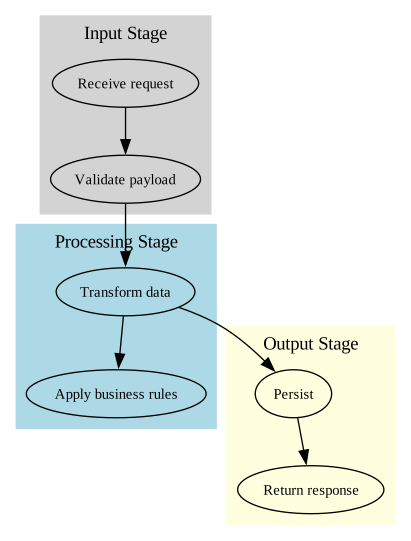
digraph FlowSections {
    graph [rankdir=TB];
    node [fontsize=11, style=rounded];

    subgraph cluster_input {
        label="Input Stage";
        color=lightgrey;
        style=filled;

        A1 [label="Receive request"];
        A2 [label="Validate payload"];
        A1 -> A2;
    }

    subgraph cluster_processing {
        label="Processing Stage";
        color=lightblue;
        style=filled;

        P1 [label="Transform data"];
        P2 [label="Apply business rules"];
        P1 -> P2;
    }

    subgraph cluster_output {
        label="Output Stage";
        color=lightyellow;
        style=filled;

        O1 [label="Persist"];
        O2 [label="Return response"];
        O1 -> O2;
    }

    A2 -> P1 -> O1;
}
Command line:
dot -Tsvg FlowSections.dot -o FlowSections.svg
State Machine
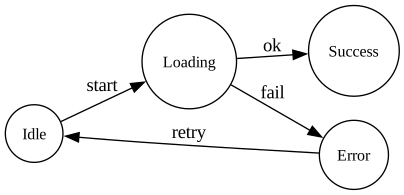
Template 4 – Basic state machine
digraph StateMachine {
    graph [rankdir=LR];
    node [shape=circle, fontsize=12];

    Idle;
    Loading;
    Error;
    Success;

    Idle -> Loading [label="start"];
    Loading -> Success [label="ok"];
    Loading -> Error [label="fail"];
    Error -> Idle [label="retry"];
}
Command line:
dot -Tsvg StateMachine.dot -o StateMachine.svg
Template 5 – Nested states
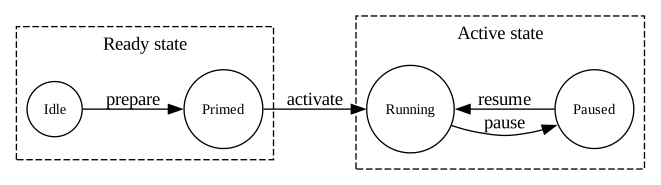
digraph NestedStates {
    graph [rankdir=LR];
    node [fontsize=11];

    subgraph cluster_ready {
        label="Ready state";
        style=dashed;
        R1 [shape=circle, label="Idle"];
        R2 [shape=circle, label="Primed"];
        R1 -> R2 [label="prepare"];
    }

    subgraph cluster_active {
        label="Active state";
        style=dashed;
        A1 [shape=circle, label="Running"];
        A2 [shape=circle, label="Paused"];
        A1 -> A2 [label="pause"];
        A2 -> A1 [label="resume"];
    }

    R2 -> A1 [label="activate"];
}
Command line:
dot -Tsvg NestedStates.dot -o NestedStates.svg
Sequence Diagram (DOT)
Template 6 – Horizontal sequence
digraph Sequence {
    graph [rankdir=LR];
    node [shape=box, fontsize=11];

    Client -> API [label="POST /login"];
    API -> AuthService [label="Check credentials"];
    AuthService -> DB [label="Query user"];
    DB -> AuthService [label="Result"];
    AuthService -> API [label="Token"];
    API -> Client [label="200 OK"];
}
Command line:
dot -Tsvg Sequence.dot -o Sequence.svg

Template 7 – Sequence with activations
digraph SequenceActivation {
    graph [rankdir=LR];
    node [shape=box, style=rounded, fontsize=11];

    User -> Frontend [label="Login"];
    Frontend -> Backend [label="POST /login"];
    Backend -> Backend [label="validate()"];
    Backend -> DB [label="SELECT user"];
    DB -> Backend [label="row found"];
    Backend -> Frontend [label="JWT"];
    Frontend -> User [label="Welcome"];
}
Command line:
dot -Tsvg SequenceActivation.dot -o SequenceActivation.svg

Dependency Graph
Template 8 – Modules
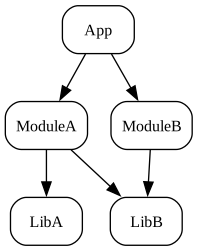
digraph DependencyTree {
    graph [rankdir=TB];
    node [shape=box, style=rounded, fontsize=12];

    App -> ModuleA;
    App -> ModuleB;
    ModuleA -> LibA;
    ModuleA -> LibB;
    ModuleB -> LibB;
}
Command line:
dot -Tsvg DependencyTree.dot -o DependencyTree.svg
Template 9 – Microservices
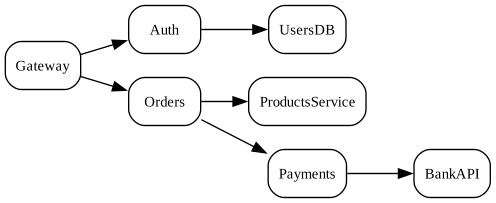
digraph MicroservicesDep {
    graph [rankdir=LR];
    node [shape=box, style=rounded, fontsize=11];

    Gateway -> Auth;
    Gateway -> Orders;
    Auth -> UsersDB;
    Orders -> ProductsService;
    Orders -> Payments;
    Payments -> BankAPI;
}
Command line:
dot -Tsvg MicroservicesDep.dot -o MicroservicesDep.svg
Architecture Diagram
Template 10 – Layered
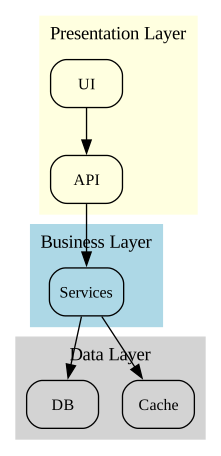
digraph Layered {
    graph [rankdir=TB];
    node [shape=box, style=rounded, fontsize=12];

    subgraph cluster_presentation {
        label="Presentation Layer";
        style=filled;
        color=lightyellow;
        UI;
        API;
    }

    subgraph cluster_business {
        label="Business Layer";
        style=filled;
        color=lightblue;
        Services;
    }

    subgraph cluster_data {
        label="Data Layer";
        style=filled;
        color=lightgrey;
        DB;
        Cache;
    }

    UI -> API -> Services -> DB;
    Services -> Cache;
}
Command line:
dot -Tsvg Layered.dot -o Layered.svg
Template 11 – Hexagonal
digraph Hexagonal {
    graph [rankdir=LR];
    node [shape=box, style=rounded, fontsize=11];

    AppCore [label="Core Domain"];
    PortIn [label="Inbound Ports"];
    PortOut [label="Outbound Ports"];
    AdapterIn [label="Inbound Adapters"];
    AdapterOut [label="Outbound Adapters"];
    DB [label="Database"];
    UI [label="Frontend/UI"];

    UI -> AdapterIn -> PortIn -> AppCore;
    AppCore -> PortOut -> AdapterOut -> DB;
}
Command line:
dot -Tsvg Hexagonal.dot -o Hexagonal.svg

ER Diagrams
Template 12 – 1:N
digraph ER_OneToMany {
    graph [rankdir=LR];
    node [shape=record, fontsize=11];

    User [label="{User|id PK|name|email}"];
    Order [label="{Order|id PK|user_id FK|total}"];

    User -> Order [label="1:N"];
}
Command line:
dot -Tsvg ER_OneToMany.dot -o ER_OneToMany.svg

Template 13 – N:N
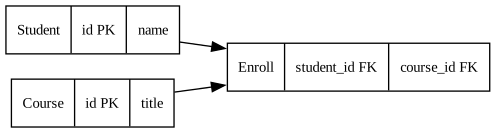
digraph ER_ManyToMany {
    graph [rankdir=LR];
    node [shape=record, fontsize=11];

    Student [label="{Student|id PK|name}"];
    Course [label="{Course|id PK|title}"];
    Enroll [label="{Enroll|student_id FK|course_id FK}"];

    Student -> Enroll;
    Course -> Enroll;
}
Command line:
dot -Tsvg ER_ManyToMany.dot -o ER_ManyToMany.svg
Call Graph
Template 14 – Basic
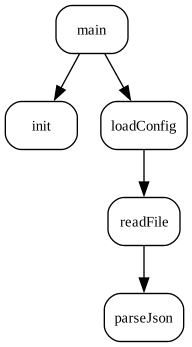
digraph CallGraph {
    graph [rankdir=TB];
    node [shape=box, style=rounded, fontsize=11];

    main -> init;
    main -> loadConfig;
    loadConfig -> readFile;
    readFile -> parseJson;
}
Command line:
dot -Tsvg CallGraph.dot -o CallGraph.svg
Template 15 – With categories
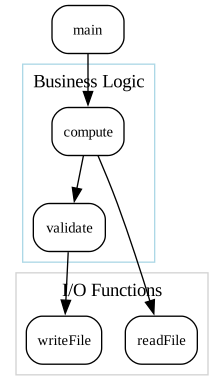
digraph CategorizedCalls {
    graph [rankdir=TB];
    node [shape=box, style=rounded, fontsize=11];

    subgraph cluster_io {
        label="I/O Functions";
        color=lightgrey;
        readFile;
        writeFile;
    }

    subgraph cluster_logic {
        label="Business Logic";
        color=lightblue;
        compute;
        validate;
    }

    main -> compute -> validate;
    compute -> readFile;
    validate -> writeFile;
}
Command line:
dot -Tsvg CategorizedCalls.dot -o CategorizedCalls.svg
Network Diagram
Template 16 – Basic
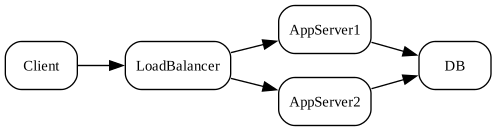
digraph Network {
    graph [rankdir=LR];
    node [shape=box, style=rounded, fontsize=11];

    Client -> LoadBalancer;
    LoadBalancer -> AppServer1;
    LoadBalancer -> AppServer2;
    AppServer1 -> DB;
    AppServer2 -> DB;
}
Command line:
dot -Tsvg Network.dot -o Network.svg
Template 17 – With protocols
digraph NetworkProto {
    graph [rankdir=LR];
    node [shape=box, fontsize=11];

    Client -> API [label="HTTPS"];
    API -> Auth [label="gRPC"];
    API -> Orders [label="REST"];
    Orders -> DB [label="TCP"];
}
Command line:
dot -Tsvg NetworkProto.dot -o NetworkProto.svg
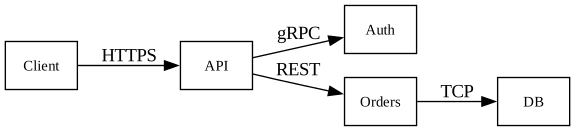
Timeline / Roadmap
Template 18 – Timeline
digraph Timeline {
    graph [rankdir=LR];
    node [shape=box, style=rounded, fontsize=11];

    Start -> Milestone1 -> Milestone2 -> Milestone3 -> Release;
}
Command line:
dot -Tsvg Timeline.dot -o Timeline.svg

Template 19 – Roadmap
digraph Roadmap {
    graph [rankdir=LR];
    node [shape=box, fontsize=11];

    subgraph cluster_backend {
        label="Backend";
        B1 [label="Auth module"];
        B2 [label="Payments"];
    }

    subgraph cluster_frontend {
        label="Frontend";
        F1 [label="Login UI"];
        F2 [label="Dashboard"];
    }

    B1 -> B2;
    F1 -> F2;
}
Command line:
dot -Tsvg Roadmap.dot -o Roadmap.svg
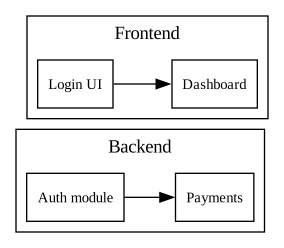
Mind Map
Template 20 – Mind map
graph MindMap {
    layout=twopi;
    rankdir=LR;
    node [shape=box, style=rounded, fontsize=11];

    Central -- Idea1;
    Central -- Idea2;
    Central -- Idea3;
    Idea2 -- Sub1;
    Idea2 -- Sub2;
}
Command line:
dot -Ktwopi -Tsvg MindMap.dot -o MindMap.svg
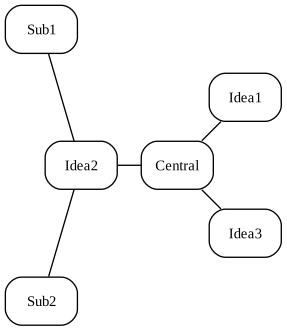
Component Diagram
Template 21 – Components
digraph Components {
    graph [rankdir=LR];
    node [shape=component, fontsize=11];

    UI -> API;
    API -> Service;
    Service -> DB;
}
Command line:
dot -Tsvg Components.dot -o Components.svg

Class Diagram
Template 22 – UML class-like
digraph Classes {
    graph [rankdir=TB];
    node [shape=record, fontsize=11];

    Person [label="{Person|name:string|age:int}"];
    Student [label="{Student|grade:int}"];
    Person -> Student;
}
Command line:
dot -Tsvg Classes.dot -o Classes.svg
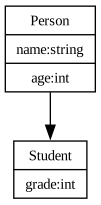
Layouts
Template 23 – Horizontal
digraph Horizontal {
    graph [rankdir=LR];
    node [shape=box, style=rounded];
}
Command line:
dot -Tsvg Horizontal.dot -o Horizontal.svg

Template 24 – Vertical
digraph Vertical {
    graph [rankdir=TB];
    node [shape=box, style=rounded];
}
Command line:
dot -Tsvg Vertical.dot -o Vertical.svg

Template 25 – Circular
graph Circular {
    layout=circo;
    node [shape=box, style=rounded];
}
Command line:
dot -Kcirco -Tsvg Circular.dot -o Circular.svg

Professional styles
Template 26 – Modern theme
digraph Modern {
    graph [rankdir=LR];
    node [
        shape=box,
        style="rounded,filled",
        fillcolor="#eef3f8",
        color="#6a8bbf",
        fontsize=11
    ];
    edge [color="#6a8bbf"];

    A -> B -> C;
}
Command line:
dot -Tsvg Modern.dot -o Modern.svg

Template 27 – Dark Theme
digraph Dark {
    bgcolor="#1e1e1e";
    node [
        shape=box,
        style="rounded,filled",
        fillcolor="#333333",
        fontcolor="white",
        color="#777777",
        fontsize=11
    ];
    edge [color="#999999"];

    A -> B -> C;
}
Command line:
dot -Tsvg Dark.dot -o Dark.svg
Useful resources
Official documentation
- Graphviz Homepage: graphviz.org — Official site with downloads, documentation and news
- DOT Language Specification: graphviz.org/doc/info/lang.html — Complete reference of DOT syntax
- Node Shapes Gallery: graphviz.org/doc/info/shapes.html — Complete catalog of all available shapes
- Attributes Reference: graphviz.org/doc/info/attrs.html — Complete list of all attributes with descriptions
- Color Names: graphviz.org/doc/info/colors.html — Predefined color palettes and supported codes
Online tools
- GraphvizOnline: dreampuf.github.io/GraphvizOnline — Online editor with real-time preview
- Edotor: edotor.net — Online Graphviz editor with examples and syntax highlighting
- WebGraphviz: webgraphviz.com — SVG/PNG generator from browser without installation
Integrations and libraries
- Graphviz Visual Editor (VSCode): Extension for live preview in Visual Studio Code
- PlantUML: plantuml.com — Uses Graphviz for UML rendering
- Mermaid: mermaid.js.org — JavaScript-based alternative to Graphviz for graphs in Markdown
- Python graphviz: graphviz.readthedocs.io — Python library to generate graphs programmatically
- Go graphviz: github.com/goccy/go-graphviz — Go binding for Graphviz
Gallery and examples
- Graphviz Gallery: graphviz.org/gallery — Official examples of complex graphs
- GitHub Awesome Graphviz: github.com/topics/graphviz — Repositories and projects using Graphviz
Community and support
- Stack Overflow: Tag graphviz — Community questions and answers
- Reddit r/graphviz: reddit.com/r/graphviz — Discussions, examples and help
Complementary tools
- dot2tex: dot2tex.readthedocs.io — Converts DOT to LaTeX/TikZ
- SVGO: github.com/svg/svgo — SVG optimizer to reduce file size
- Inkscape: inkscape.org — Vector editor for manual post-processing of SVG
FAQ: Frequently Asked Questions about DOT and Graphviz
How do I create a diagram with Graphviz?
Create a file with .dot extension containing the graph description, then run dot -Tsvg file.dot -o output.svg. The command generates an SVG image from the DOT code.
What’s the difference between digraph and graph in DOT?
digraph creates a directed graph (with arrows), graph creates an undirected graph (with lines without arrows). Use -> for directed edges, -- for undirected edges.
How do I change the layout direction in Graphviz?
Use the rankdir attribute: TB (top-to-bottom, default), BT (bottom-to-top), LR (left-to-right), RL (right-to-left). Example: graph [rankdir=LR];
How do I create a flowchart with decision diamonds in DOT?
Use shape=diamond for decision nodes: Decision [shape=diamond, label="Valid?"];
How do I group nodes in a box (cluster) in Graphviz?
Use subgraph cluster_name { ... }. The cluster_ prefix is mandatory to display the grouping.
How do I create ER (Entity-Relationship) diagrams with DOT?
Use shape=plaintext with HTML labels to create structured tables, and arrowhead=crow for 1:N relationships.
How do I avoid overlaps between arrows and nodes in Graphviz?
Add graph [overlap=false, splines=true, sep="+0.2"]; to avoid collisions.
What’s the best layout engine for my diagram?
- dot: flowcharts, pipelines, hierarchies (default)
- neato/fdp: undirected graphs, concept maps
- circo: hub-and-spoke structures
- twopi: radial trees, org charts
How do I generate PNG instead of SVG with Graphviz?
Change the -T flag: dot -Tpng file.dot -o output.png. You can also specify DPI: dot -Tpng -Gdpi=150.
Can I use Graphviz online without installing it?
Yes! Use edotor.net or GraphvizOnline to test DOT code in your browser.
How do I integrate Graphviz in my CI/CD pipeline?
Install Graphviz in your CI environment (e.g., apt install graphviz in Docker), then add a step that runs dot -Tsvg *.dot. Version the .dot files and generate images automatically.
How do I create state diagrams (state machine) with DOT?
Use shape=circle for states, shape=point for the initial state, shape=doublecircle for the final state. Label edges with events: Idle -> Loading [label="start"];
How do I apply the same style to multiple nodes without repeating it?
List nodes on the same line followed by attributes: A; B; C [shape=box, fillcolor=lightblue, style=filled];
Does DOT support HEX colors?
Yes! Use HEX codes like fillcolor="#E3F2FD" or predefined names like fillcolor=lightblue.
How do I create UML diagrams with Graphviz?
Use shape=record for class diagrams: Class [label="{ClassName|attribute:type|method()}"];. For complete UML consider PlantUML which uses Graphviz internally.
Article written by Daniele Teti — danieleteti.it
Comments
comments powered by Disqus