Git Worktrees: Parallel Work Without Losing Your Mind
What git worktrees are, the problem they solve, and how I use them every day to switch context without stashing, re-cloning, or letting my IDE re-index everything.🇮🇹 Italiano • 🇩🇪 Deutsch • 🇪🇸 Español • 🇧🇷 Português
One copy of the repository, many independent working directories: the Git feature that changed the way I switch context.
There’s a moment in every developer’s day that you know by heart. You’re deep into a tricky feature: twelve files changed, the IDE has finally re-indexed everything, the debugger is paused on a breakpoint, your head holding together an extremely fragile mental castle. And at that exact instant the message lands: “There’s a critical bug in production, we need a fix right now.”
What do you do? The classic options are three, and all three hurt. You can git stash and pray you remember what you had in your hands. You can commit half-baked work with a message like WIP doesn't work yet that will pollute the history forever. Or you can clone the repository again into another folder, wait for the download, reconfigure the environment, and rebuild everything from scratch. Either way, that mental castle collapses.
There’s a fourth option, and ever since I discovered it I use it almost every day: git worktrees. And here I get to the real reason I wrote this post: worktrees have been in Git for years, and yet I keep seeing tons of developers, even excellent ones, who don’t use them and don’t even know they exist. Every time I show them to someone the reaction is the same: “how on earth did I work without these until today?”. So let’s set things straight once and for all: where they come from, what problem they actually solve, how to use them, and why, today, they’ve become an essential tool for AI-based coding agents too.
git checkout, you can have multiple folders, each checked out on a different branch, all sharing the same history and the same objects inside .git. You switch context by changing folder, not by stashing. Introduced in Git 2.5 (July 2015).Where they come from
The git worktree command arrived with Git 2.5, released on July 27, 2015. Before that, the implicit rule was iron-clad: one repository, one working directory. If you wanted to work on two branches at the same time in two distinct folders, the only official route was a repeated git clone, with all the waste that entails: duplicated disk space, objects downloaded again, remotes to reconfigure, and no link whatsoever between the copies.
Worktrees broke that constraint. The underlying idea is elegant: a repository’s history (commits, branches, tags, objects) lives exactly once inside .git, while the working directories that materialize it on disk can be many. One single source of truth, many work desks facing it.
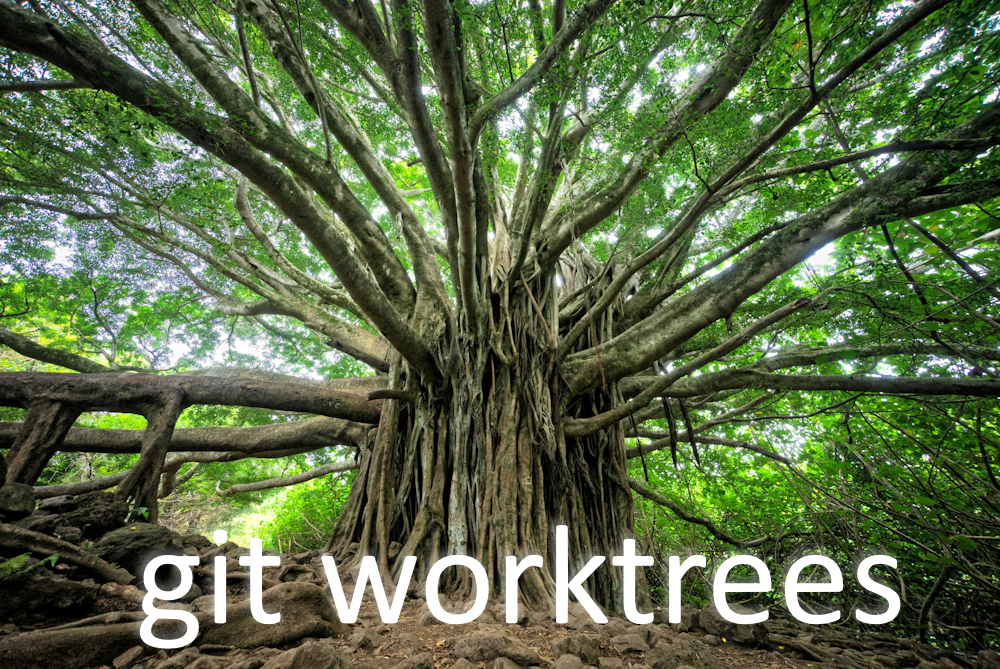
.git) from which a canopy of independent working directories branches out. That's exactly how git worktrees work.The problem they actually solve
Git’s classic model has one precise bottleneck: there’s a single working directory, so it can only be on one branch at a time. git checkout (or the more modern git switch) is a destructive operation on your workspace: it rewrites the files on disk to reflect the target branch. Every annoyance you know follows from this.
- Uncommitted changes get in the way. If you have dirty files, Git refuses to switch branch, or forces you to stash. The stash is a hidden pile where it’s incredibly easy to forget things.
- Switching branch invalidates your build work. You switch branch and the file timestamps change: the IDE re-indexes, the compiler rebuilds half the solution, the test cache is wiped. In a Delphi project of any size, or any large codebase, that means minutes lost on every jump.
- You can’t look at two branches at the same moment. Want to compare the feature’s behavior with
mainside by side? With a single working directory you can’t: you have to jump back and forth, rebuilding every time.
Worktrees remove the bottleneck at the root. Every working context gets its own folder, with its own files, its own build state, independent of the others. Switching context becomes a cd, not a git stash followed by a rebuild.
How to use them: the four commands you need
The entire worktree API fits in a handful of commands. Let’s assume you’re inside an already-cloned repository.
Create a worktree on an existing branch, in a sibling folder:
# Create ../app-hotfix as a working directory checked out on branch hotfix/login
git worktree add ../app-hotfix hotfix/login
Create a worktree and a new branch together, in one shot:
# Create branch feature/export starting from main and give it its own folder
git worktree add -b feature/export ../app-export main
List all active worktrees, with their path and the branch they’re on:
git worktree list
# /home/daniele/app           a1b2c3d [main]
# /home/daniele/app-hotfix    e4f5g6h [hotfix/login]
# /home/daniele/app-export    i7j8k9l [feature/export]
Remove a worktree when you’re done, and clean up any orphaned references left behind:
git worktree remove ../app-hotfix
git worktree prune   # cleans up metadata of worktrees deleted by hand
One note worth keeping in mind right away: Git will not let you check out the same branch in two worktrees at the same time. This is a deliberate protection, not an arbitrary limit. Two folders modifying the same branch would be a perfect recipe for getting confused and stepping on each other’s commits. If you really need it, --force exists, but in 99% of cases that error message is saving you from trouble.
There are also a few more commands you’ll use less often but are good to know exist: git worktree move to relocate a working directory to another path, git worktree lock / unlock to prevent a worktree (for example on a removable drive or a network share) from being pruned automatically, and git worktree repair to fix references when you’ve moved folders by hand and Git got lost. For everyday use, though, the four commands above cover everything.
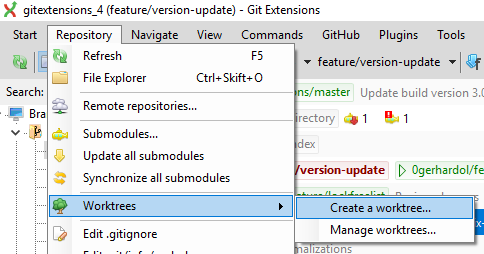
And if you prefer the mouse to the keyboard, you’re not left out: the more mature graphical tools expose worktrees just as naturally. In Git Extensions, for example, there’s a whole dedicated submenu under Repository, Worktrees, with entries to create a new one and to manage the existing ones.
A layout that keeps itself tidy
If worktrees become a stable part of your workflow, a small organizational trick makes them even cleaner. Instead of scattering sibling folders at random, a very common convention is to clone the repository as bare into a .bare folder, and keep all the worktrees as subfolders next to it, one per branch:
git clone --bare git@github.com:user/app.git app/.bare
cd app
echo "gitdir: ./.bare" > .git
# check out the existing branches, each in its own folder
git worktree add main main
git worktree add feature-export feature/export
This way your project becomes an app/ folder containing main/, feature-export/ and so on, each ready to use, with the shared history tucked away in .bare. Note that I always pass the branch as the second argument: if you leave it out, Git uses only the last path segment as the branch name (from feature/export it would take export) and often ends up creating a brand-new branch, rarely the one you meant. It’s not a mandatory setup, but when you work with many worktrees you’ll thank yourself.
Examples from real life
The theory is short, the usefulness is huge. Here are the scenarios where I open a worktree without even thinking about it.
The hotfix while a feature is half-done
Back to the opening scene. You’re halfway through feature/new-report, working directory full of changes. The emergency lands. Instead of stashing:
git worktree add -b hotfix/crash-pdf ../app-hotfix main
cd ../app-hotfix
# here you fix the bug, commit, push, open the PR
# meanwhile your feature is still intact in the other folder
Once the fire is out, you cd back into the feature folder and find everything exactly as you left it: open files, build state, breakpoints. Zero stashes, zero rebuilds.
The code review without disturbing your own work
A colleague asks you to review their PR. You want to actually run it, not just read the diff on a web page. With a single working directory you’d have to interrupt your work. With a worktree, you don’t:
git worktree add ../app-review feature/colleague-pr
cd ../app-review
# you build, run, try out your colleague's feature
# your personal branch isn't even touched
A long build in parallel
The classic case in large projects: a full build or test suite takes minutes. Instead of sitting on your hands, you launch the heavy build in one worktree and keep writing code in another. Two folders, two independent build states, no interference.
The side-by-side comparison of two versions
Need to figure out why a behavior changed between main and the release branch? Open two worktrees, one for each, and put them literally next to each other in two editor windows. No jumping back and forth: you look at them at the same instant.
Why AI agents use them so much
Here worktrees go from personal convenience to enablers of an entire way of working. AI-based coding agents, like Claude Code and similar, have a natural appetite for parallel work: running several tasks at the same time, each modifying files, launching builds, and committing on its own.
The problem is that several instances working in the same working directory would step on each other: one agent changes a file while another is compiling it, branches get overwritten, the state becomes inconsistent. The solution these tools adopt is exactly the git worktree: each agent, or each parallel task, gets an isolated worktree. Each has its own folder, its own branch, its own build state, but they all share the same object database, so there’s no duplication of the history, and the results merge back into the main repository with a normal merge.
It’s exactly the same pattern I use by hand for a hotfix, taken to industrial scale and automated. One agent works on feature A in ../app-feature-a, another on feature B in ../app-feature-b, a third is running the tests in ../app-tests, and none of the three even knows the others exist. The isolation that makes worktrees convenient for us is the very property that makes them indispensable for orchestrating several agents in parallel.
A few precautions
Worktrees are solid, but a couple of things are worth knowing before you get burned.
- Same branch, only one worktree. We said it: it’s a protection, not a flaw. To try the same branch in two places, create a helper branch.
- Configuration is shared, the working directory is not. Worktrees share
config, the objects, and the branches, but each has its ownHEAD, its own index, and its own files. The stash, beware, is shared at the repository level: don’t picture it as tied to a specific worktree. - Clean up. When you delete a worktree folder by hand instead of with
git worktree remove, orphaned metadata is left behind:git worktree prunecleans it up.git worktree listis your dashboard for not losing track. - Submodules need care. If the project uses submodules, remember to initialize them in the new worktree too; they don’t materialize on their own.
Key takeaways
- One repository, many working directories. Git worktrees, introduced in Git 2.5 (July 2015), give you multiple working folders from the same
.git, each on a different branch. - Switching context becomes a
cd. No moregit stashor re-clones to handle an urgent hotfix: you open a worktree, work, close it, and the original work stays intact. - Build state survives. Each worktree keeps its own indexing and compile cache: switching context doesn’t force the IDE to start over.
- Few commands.
git worktree add,git worktree list,git worktree remove,git worktree prune: that’s pretty much all of it. - They’re the engine of AI agents’ parallel work. Assigning an isolated worktree to each agent or task is the pattern that lets multiple agents work on the same repository without colliding.
- One protection to remember. The same branch can’t live in two worktrees at once: it’s deliberate, and it’s a good thing.
Frequently asked questions
In which version of Git did worktrees arrive?
The git worktree command was introduced in Git 2.5, released on July 27, 2015. It has been a stable feature ever since and is available in any modern Git installation.
What’s the difference between git worktree and cloning the repository again?
A fresh clone creates a completely separate copy: a duplicated object database, double the disk space, remotes to reconfigure, and no link to the original. A worktree, instead, only adds a working directory: the history, branches, and objects stay shared in a single .git. It’s much lighter, and branches created in one worktree are immediately visible to the others.
Can I check out the same branch in two worktrees?
No, and on purpose. Git prevents placing the same branch in two worktrees at once to avoid two folders rewriting its state inconsistently. If you really need it, you can force it with --force, but almost always the correct solution is to create a helper branch.
Why do AI coding agents use worktrees?
Because they enable parallel work without conflicts. By assigning each agent or task an isolated worktree, multiple agents can modify files, compile, and commit at the same time on the same repository without stepping on each other, while still sharing a single history into which the results merge.
How do I remove a worktree when I’m done?
Use git worktree remove <path> to delete it cleanly. If instead you deleted the folder by hand, run git worktree prune to clean up the orphaned metadata. With git worktree list you can check at any time which worktrees are active.
Worktrees are just one of the many things Git can do
Worktrees are one of the features that separate those who use Git from those who endure it. And here's something I see happen constantly: plenty of people are convinced they know Git, then they take the course BitTime Professionals dedicates to Git and version control systems and realize that, up to that point, they'd been using it "by feel", running memorized commands without truly understanding what happens underneath. If you want your team to know Git inside out, from the object model to branching workflows, all the way to the emergency situations where you need to know exactly what you're doing, the course is practical, dense, and built for real teams. You'll find all the details here: bittimeprofessionals.com/formazione/git.
Comments